Email Actions
Configuring a form to send an email on submission
Email
The email action allows sending an email when an event occurs on a form. With a multitude of options, users can configure this action to satisfy different workflows and use cases. Connect to your own Email transport, configure the email template, or dynamically attach files to the email.

Settings
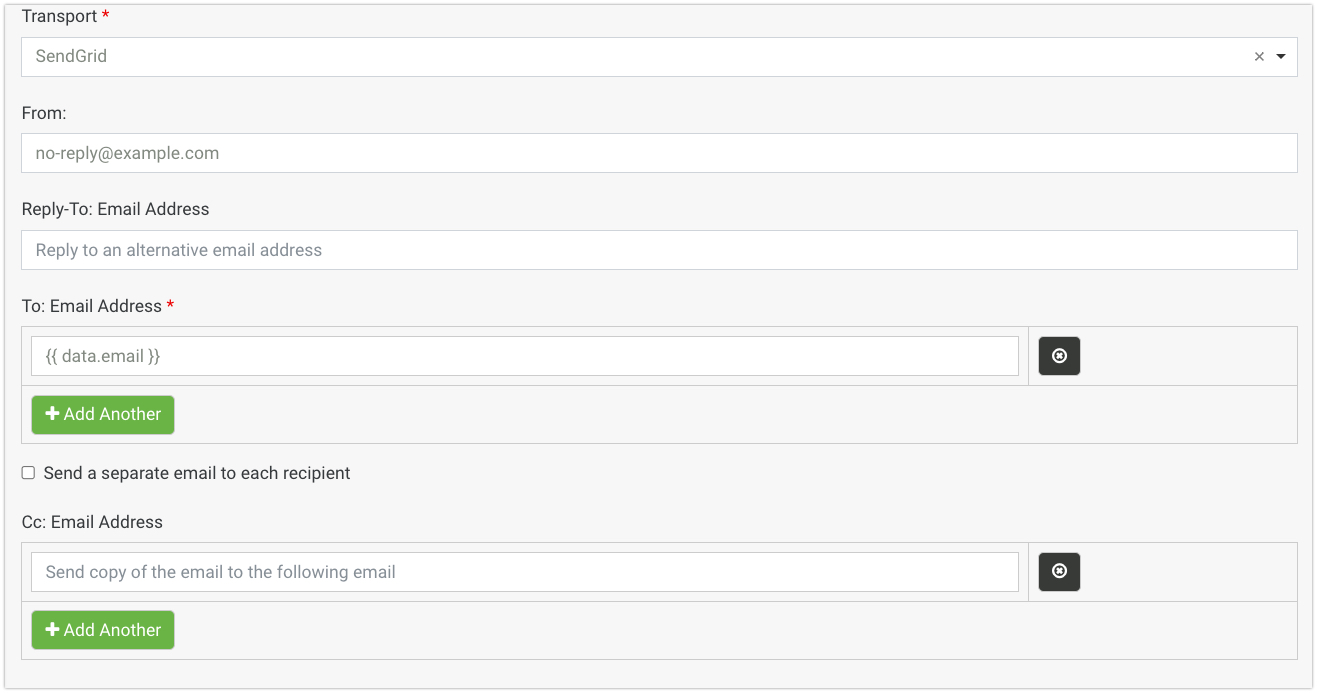
Transport: Select which email transport to use. These need to be configured in your project settings. Transports will not be available for selection if you haven’t configured them.
When using the Form.io SaaS offering @ portal.form.io, you must set up your own Transport. The default transport service provided by Form.io is no longer available. Please see the documentation on Email Integrations for instructions on how to proceed.
From: Enter the email address the email will be sent from.
Reply-To: Email Address: Set a different address the recipient will reply to.
To: Enter the email addresses to send to.
You can use field data from the form by using {{ data.email }} where the field's property name is email.
Send a separate email to each recipient: Each recipient designated in the TO field will receive an individual email
Cc: Email Address: Send a copy of the email to the listed email addresses
Bcc: Email Address: Send a blind copy of the email to the listed email addresses. Recipients will not see the other email addresses listed.
Subject: The subject of the email. By default, the Subject will interpolate the form title.
You may use other field data from the form using {{ data.fieldname }}
Email Template URL: The HTML template used to style and format your email content. By default, the email action will utilize the following HTML template to organize the content of the email:
https://pro.formview.io/assets/email.html
Message: The message in the email.
You may use field data from the form using {{ data.fieldname }}
Rendering Method: Determines how the email will render
Dynamic rendering utilizes formio.js to render the email.
Static rendering using the Nunjucks templating engine.
Attach Submission Files: Check this if you would like to attach uploaded files from the file component to the email.
Attach PDF Files: Check this if you would like to attach a PDF of the submission to the email. This will count toward your PDF Submission count for every email sent.
If you are remotely deployed, please set the BASE_URL=https://yourdomain.com to match the API server’s domain protocol and domain name for the formio-enterprise server
Nunjucks Templating
All of the form fields are sent through a templating engine called Nunjucks. It is recommended that you read through the documentation of this templating language to understand how it can be utilized to produce very complex templates for your emails using form data.
Click Here for the full Nunjuck Templating documentation.
Use the following variables which are provided to each template.
data
The submission data which maps to the data object of the submission. Example: {{ data.firstName }} would map to the data provided in the "First Name" field if one is provided in your form.
id
The ID of the submission being submitted.
{{ data.[RESOURCE]Obj }}
Because all of the nested resources will only show their "template" data, every nested resource also has an object property assigned to the data to give you access to the full resource object assigned to that submission. For example, if you have a Customer resource field assigned to an Order resource, and you sent an email from the order. {{ data.customer }} would only show the templated customer, however {{ data.customerObj }} would contain the full customer object. In this case, you could type {{ data.customerObj.data.email }} to get the customers email address within the template.
content
This is the content within the Mail message section that you wish to inject within a template. This is useful if you wish to have a common template that all your emails use, and then use the "message" portion to construct the content within that template using {{ content }}
form
The form object that this email is being sent from. {{ form.components }} would provide you with all the components within the form.
components
A flattened list of form components. Example, {{ components.firstName.label }} would print out the First Name component.
owner
The user who owns the form.
req
This is a stripped-down request object that contains the following parameters.
res
A stripped down response object that contains the following parameters.
The current mail object being sent. Example {{ mail.to }} would contain the email address who the message is being sent to, which contains the following parameters.
Nunjucks Filters
In addition to the core filters provided by Nunjucks, the following additional filters are also included for use within Emails.
date
Prints out a date value as a readible date. See Nunjucks Date Filter for detailed documentation. Example {{ created | date("YYYY") }}
Nunjucks Macros
In addition to template variables, we also provide a number of macros that can be used to easily render form submission information into your emails. These are as follows.
{{ table(form.components, title) }}
Prints out a nested table of the form submission.
{{ submission(data, components) }}
Prints out a flat submission data table.
{{ value(key) }}
Prints out a readable value for a submission of a certain field. Example {{ value('birthday') }}
{{ label(key) }}
Prints out the configured label for a certain field. Example {{ label('birthday') }}
Template Service
Considering that the template rendering is processor intensive, it is also possible to deploy the template rendering system as a separate service.
The library that governs the template rendering system is called Form.io Workers. This library can be found by going to https://github.com/formio/formio-workers. The deployed Form.io platform is also capable of offloading all email template processing to this separate micro-service. Within this library, you have the ability to either run this as a stand-alone Node.js service, or you can also use a tool such as Claudia.js.
For example, if you wish to push this into your own AWS Lambda function using Claudia, you can run the following within the directory.
If you wish to see the command that is executed within the NPM script, you can open up the package.json file and see the "deploy" script within the scripts section. This uses Claudia to push this into AWS Lambda as a live endpoint.
Endpoint
Once the template service has been deployed, the "nunjucks" service can then be accessed using the following url.
https://[TEMPLATE_SERVICE_URL]/worker/nunjucks?key=yourkey
Template Service Configuration
The template service can be configured with the following environment variables. These variables can be provided within the .env file included with the source code of this library.
PORT
The port to bind to when running the service
3000
KEY
This is the secret key that is used to communicate to the template service via API. This key is used within the query parameter.
https://worker.yourdomain.com/worker/nunjucks?key=yourkey
LAMBDA
Tells the service if it is running within AWS Lambda or locally within a VM.
1 - To enable use lambda 2 - To use local install
Once you have the template service up and running, you can then tell the Form.io Enterprise Server to use this service with the TEMPLATE_SERVICE environment variable like so.
Template Examples
The Email action Message carries a default Nunjuck Macro to produce an output of all field data within the submission which is found in the Message setting field of the action.
{{ submission(data, form.components) }}
This Macro works in conjunction with the HTML template found within the HTML Email Template field:
https://pro.formview.io/assets/email.html
The following examples will demonstrate how to add Nunjuck Tags and Macros to your own custom template messages. These examples will use HTML to format the content of the email inside a readable table.
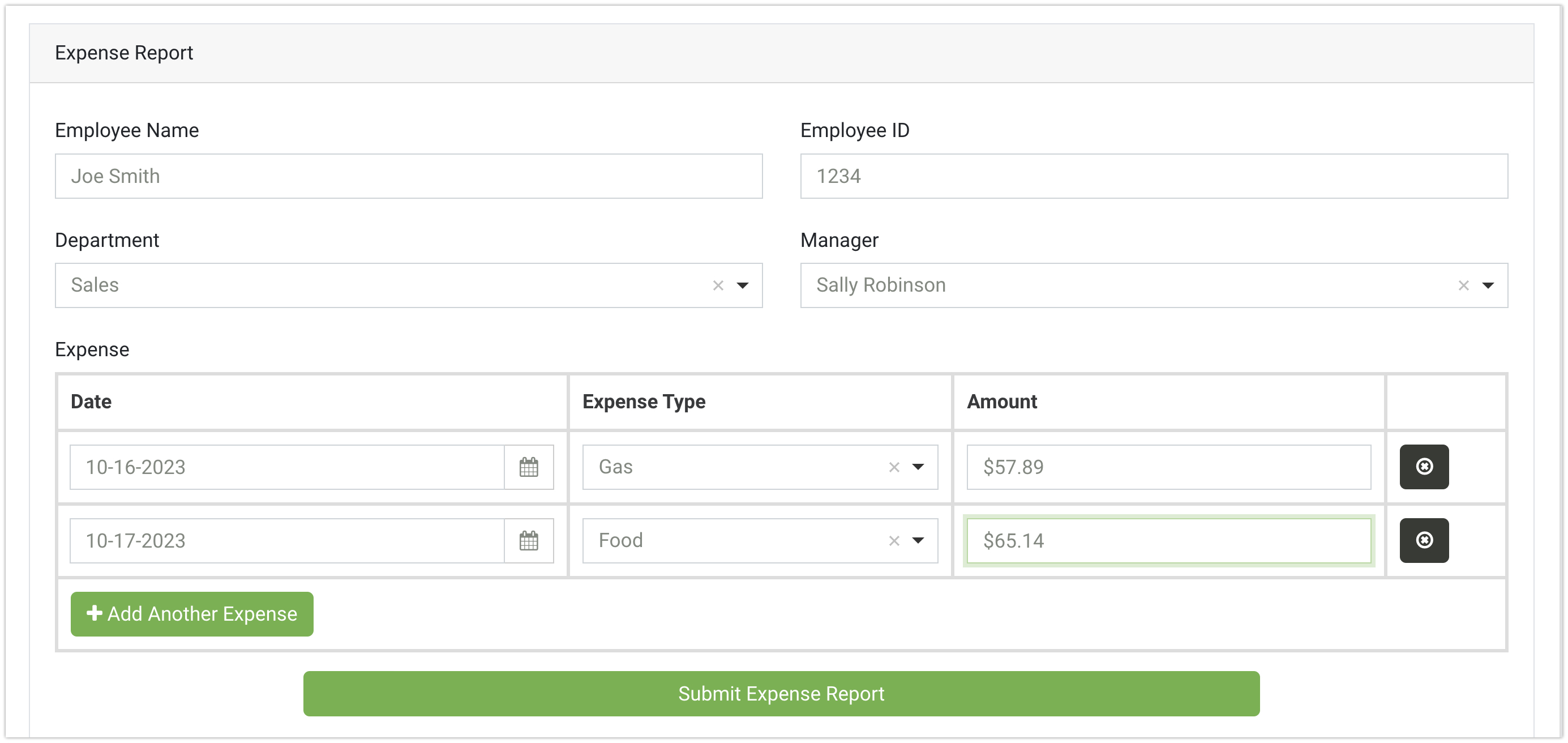
Each example utilizes the following form which can be Imported into your own project using the Form Embed URL.
https://khvenypsypifjpi.form.io/expensereporting

Extracting Field Submission Data
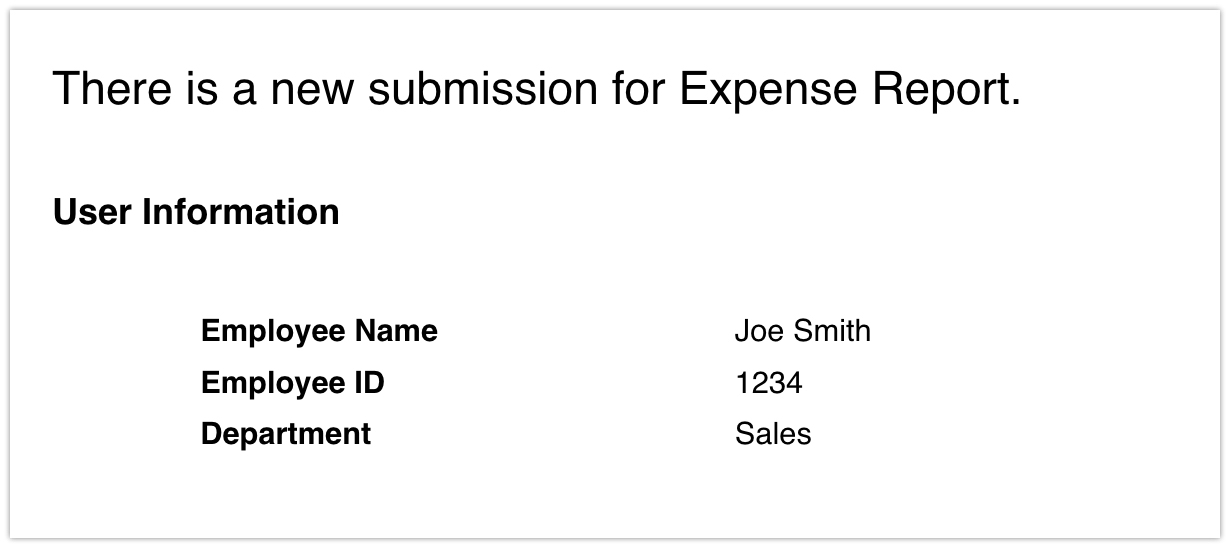
In this example, the email template will use Nunjuck Macros to interpolate the Employee Name, Employee ID, and Department field data from the submission and output the information into an HTML table inside the email message.

Add the following code to the Message field within the Email Action settings.
Using For Loop To Output Field Submission Data Inside Arrays
The for tag is a Nunjuck tag that iterates over arrays and dictionaries. This example demonstrates how to interpolate data from fields inside an array (Data Grid, Edit Grid, etc) and output that data into the email message. Array data is referenced differently than other types of data, because of this, we are unable to use the Nunjuck Macro provided in the previous example and must set up a For Loop inside the message template.
To reference array data:
Create a For Loop provided by the Nunjuck templating documentation.
{% for X in X %}Set the array data inside the loop. Data inside of Data Grids or Edit Grids is referenced using the row attribute.
{% forrowin X %}Reference the Array property name within the loop. In this example our Data Grid property name is expense.
{% for row indata.expense%}Now we can reference the individual fields within the array. Use the
rowvariable and the API Property Name of the field{{ row.date }}{{ row.expenseType }}{{ row.amount }}Close out the For Loop
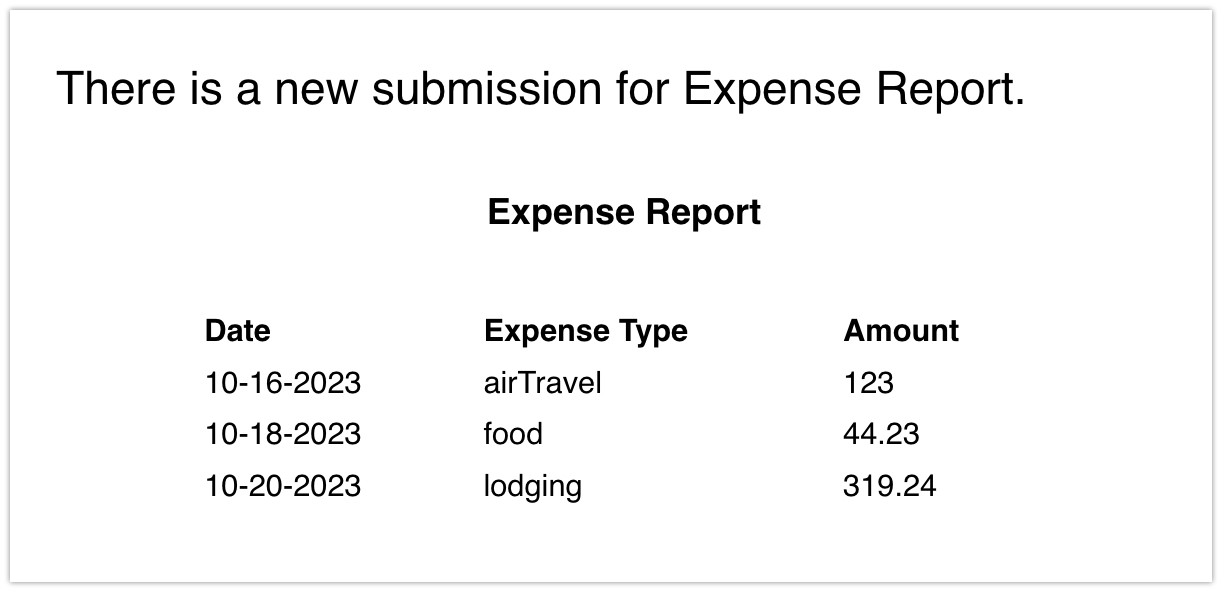
{%endfor%}Here is an example of a For Loop being used within an HTML table and Nunjuck Macro. The Table will create columns for the Expense Data, Expense Type, and Amount. The Nunjuck Macro will interpolate the Label of these fields from the Form and present them as the column headers. The For Loop lists all the component row data inside the Expense Data Grid and presents the row data within the HTML table.

Add the following code to the Message field within the Email Action settings.
If tag for conditional data output inside the email content
The If tag tests a condition and lets you selectively display content inside the email. It behaves exactly as javascript's if behaves.
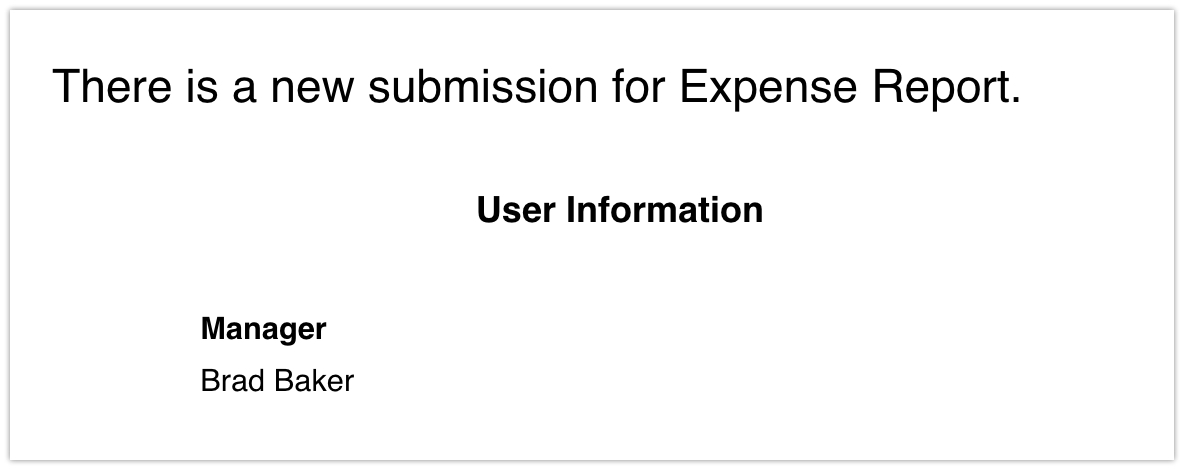
In this example, the Manager field data should be included in the email content when the field contains data.
Add an If tag inside your message template
{% if X %}Add the condition statement inside the tag
{% if data.manager !== "" %}Add the output of the condition. If the Manager field has a value, the condition will output the Label and data Value of the field inside the HTML table
Close out the If tag
{% endif %}

Using If tag inside a For Loop
In some cases, you may want to incorporate If tags where the condition is based on fields inside an array. In this case, the If tag must be set inside the For loop of the message template.
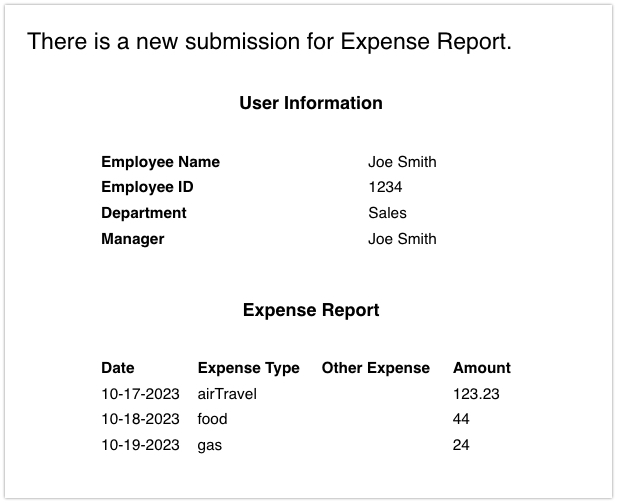
Within the form, there is a field inside the Expense DataGrid called Other Expense that will conditionally display when Other is selected from Expense Type dropdown. In this example, the Other Expense data should be included in the email content only if the Other Expense field is conditionally displayed on the form.
There are two If tags being used in the following example. The first will display the Other Expense Label within the header of the HTML table. The second will display the Other Expense submission value within the corresponding row of the table.
Add a For Loop
{% for X in X %}Within the For Loop, add the If tag inside the HTML table row (line 12)
{% if row.expenseType === "other" %}Add the corresponding result inside the tag (line 15). The row variable is used here to reference data within an array.
{{ row.otherExpense }}Close out the If tags (line 14)
{% endif %}
Final Example
The example below incorporates all of the previous examples using Nunjuck Macros, For loops, and If tags.

Video
Last updated
Was this helpful?