> For the complete documentation index, see [llms.txt](https://help.form.io/llms.txt). Markdown versions of documentation pages are available by appending `.md` to page URLs; this page is available as [Markdown](https://help.form.io/form-building/actions/group-assignment-actions.md).
# Group Assignment Actions
The Group Assignment action grants access to certain users who belong to a certain "group" Resource within your project. A **Group** can be defined as a separate Resource that is then assigned to different users, thereby placing those users into different permission contexts. In order to establish a permission system based on these groups, follow the Walkthrough guide below.
## Settings
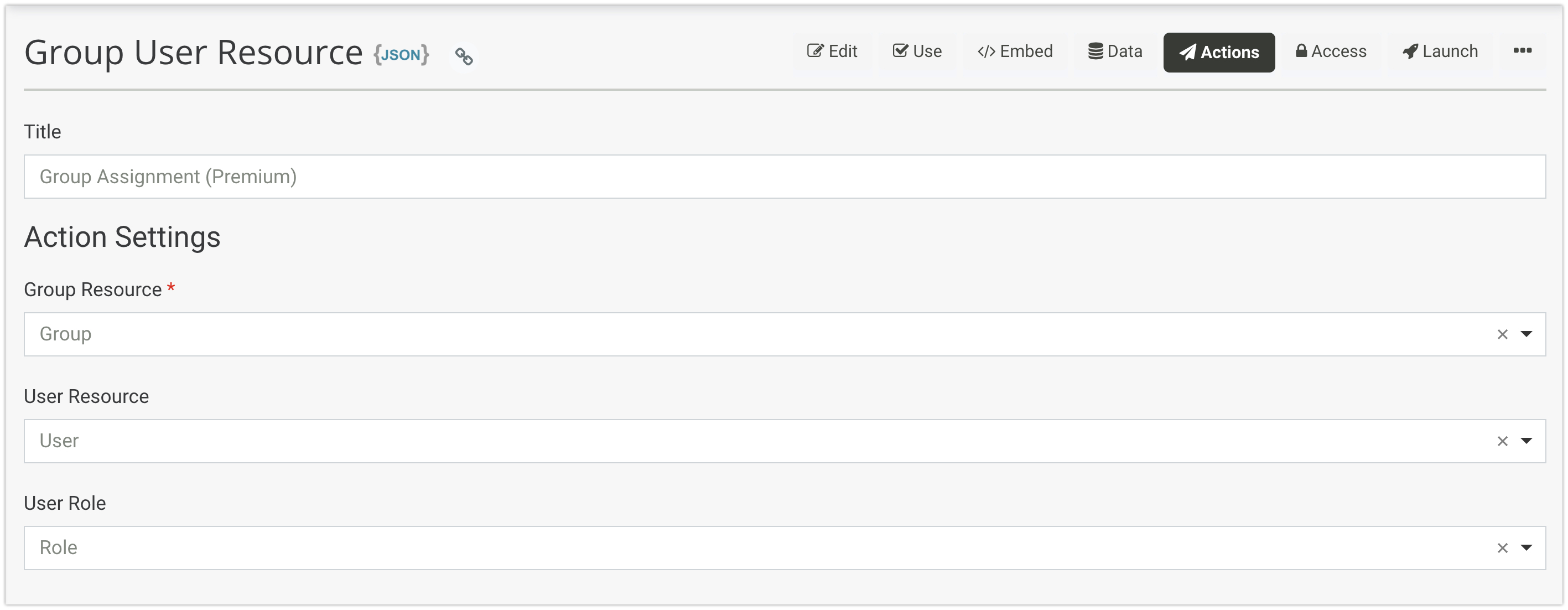
**Group Resource:** The Select Resource field on your form that maps to the Group Resource.
**User Resource:** The Select Resource field on your form that maps to the User Resource. Users will join the selected Group upon submission.
**User Role:** The Select Resource field on your form that maps to the Role Resource. Users will carry the User Role that was selected upon submission
## Walkthrough
[**Click here for more information on Group Assignments workflows**](/admin/roles-and-permissions/field-based-resource-access.md)
### Group Permissions
In addition to providing access based on Roles within a project, you can also grant access to certain users who belong to a certain "group". A **Group** can be defined as a separate Resource that is then assigned to users, thereby placing those users into different contexts. In order to establish a permission system based on these groups, we must first setup our project to enable Group structure. We will start by creating a Group resource.
#### Create a Group Resource
In order to take advantage of the group permission system, you must first create a "group" resource. A group can really be defined as any entity that is used to coalesce different sets of users into different groups. Here are some good examples of what would be defined as a Group.
* **Department** - Used to place employees in their own departments.
* **Team** - Could be used to place athletes into their teams.
* **Class** - Could be used for education to collect teachers and students together into a "class" group.
For this generic example, however, we will just call our group "Group" which can be done by creating a new resource, and we will just add a single Text Field called "Name".

Once this group is created, we can now create a few example groups by simply using this resource and submitting a few records. We will just create two new groups called, "Teachers" and "Students"

We can now create our "join" resource to bring users and groups together.
#### Creating a Join Resource
To create a many-to-many relationship between Users and Groups (where users can be associated with many groups, and vice-versa) we will create another Resource that will serve the sole purpose of "joining" these two resources together. This is typically called a **Join Resource** and is very powerful in establishing a many-to-many relationship between two resources.
{% hint style="info" %}
A one-to-many relationship is also possible by simply adding the "Group" resource as a field that belongs on the User resource, but for this example, we will cover the more common use case of using a join resource.
{% endhint %}
To create this Join Resource, we will do the following.
1. Create a new **Resource** and call it **UserGroup**
2. Drag and drop a **Select** component
3. Give the component a label of **User**
4. Click on **Data** tab, and then select **Resource** under **Data Source Type**.
5. Next, select **User** as the resource.
6. Scroll down and then type the following for **Item Template.** `{{ item.data.email }}`
7. Press **Save** to save the field on the form.
8. Repeat steps 2 - 7, but this time do it for the **Group** resource. Make the **Item Template** as `{{ item.data.name }}`
Now save this resource.

Next, you will click on the **Actions** tab for this resource, add a new Action called **Group Assignment** and then click on **Add Action** button. Under the action settings, for **Group Resource**, select **Group** and for the **User Resource**, select **User.**

Next click **Save Action** to add this action to the form.

We can now create a few submissions in this resource (by clicking the **Use** tab) so that we can associate some users with some groups. Here is an example of the submission data after we have done this.

### Assigning Group Permissions
The next thing we need to do is to add a Group to a form (as a field), and then provide access to that form based on the group that the user belongs to. For example, we could create an **Evaluation** form, and then add the following Group as a field to that form.

Now that you have the field added to your form, we can now edit the **Access** tab and configure the following under the **Field Based Resource Access** section.

This configuration basically says the following.
> Any students who create evaluations can read other students evaluations, but not teachers evaluations. Any teachers who create evaluations can read other teachers evaluations, but not student evaluations.
This is how you can enable groups of users to have different access than other groups of users based on their associations with other resources within a Form.io project.
{% hint style="info" %}
Group permissions function by assigning the Group ID (submission id) as a "role" that is added to the user's submission object. This can be seen by viewing the user's submission JSON and viewing the "roles" property which will contain any group IDs that the user has been assigned.
{% endhint %}
## Group Roles
In addition to allowing Groups to be established, it is also possible to establish roles, where further categorization of users can be made within a single group. For example, if you wish to have a Group defined as a **Classroom,** the Group Roles system allows you to assign users to a Classroom, but then choose if they are a Teacher or a Student within that classroom, and then grant separate permissions based on their role within the Group.
This is configured exactly as you would configure the Group Permissions above, but with just a few differences.
* When you create your **Join Resource**, you will need to create a field that will be used to establish the "Roles" within that group. This can simply be a Select dropdown with the Values of that select dropdown showing the roles you wish to provide.

* When you configure the **Group Assignment** action, you will now want to select this new field as the Role.

* Finally, when you assign the permissions of the Group to the form, you will want to assign which role within the form can have which permission.

##
---
# Agent Instructions
This documentation is published with GitBook. GitBook is the documentation platform designed so that both humans and AI agents can read, navigate, and reason over technical content effectively. Learn more at gitbook.com.
## Querying This Documentation
If you need additional information that is not directly available in this page, you can query the documentation by asking a question.
Perform an HTTP GET request on the following URL with the `ask` and `goal` query parameters:
```
GET https://help.form.io/form-building/actions/group-assignment-actions.md?ask=&goal=
```
`ask` is the immediate question: it should be specific, self-contained, and written in natural language.
`goal` is what the user is ultimately trying to achieve, the reason they need the answer. Sharing it helps GitBook give you a better, more relevant answer. A goal is most helpful when it describes the outcome the user wants rather than restating the question. For example, with `ask=how do I create an API token`, a goal like `automate deployments from our CI pipeline` lets GitBook tailor the answer to that use case.
The response will contain a direct answer to the question and relevant excerpts and sources from the documentation.
Use this mechanism when the answer is not explicitly present in the current page, you need clarification or additional context, or you want to retrieve related documentation sections.