> For the complete documentation index, see [llms.txt](https://help.form.io/llms.txt). Markdown versions of documentation pages are available by appending `.md` to page URLs; this page is available as [Markdown](https://help.form.io/form-building/pdf-forms/dynamic-pdf-translation.md).

# Dynamic PDF Translation

| Server     | Minimum Version |
| ---------- | --------------- |
| API Server | 9.8.0           |
| PDF Server | 5.14.0          |

## Overview

Dynamic PDF Translation allows form submission PDFs to be downloaded with field labels, placeholders, and descriptive text automatically translated into a target language. Translation is driven by a remotely hosted JSON file and activated through a URL query parameter at download time—without requiring the form to be resubmitted.

When a user downloads a PDF for a form submission, they can append a language parameter to the download URL. The PDF server fetches translations from a configured endpoint and replaces matching field text before rendering the PDF.

Changing the language parameter value changes the rendered PDF language immediately, allowing the same submission to be downloaded in multiple languages without modifying the form or submission data.

The Translations URL can be configured in two ways:

* **Per form** — via the PDF Settings panel in Form Settings, using the Translations URL field. This applies translation to a single form only.
* **Globally** across all forms in a project — via the Project Settings. When set, the global Translations URL applies to every form in the project that does not have a form-level override.

{% hint style="info" %}
Global project-level translation is not yet available and will be released in a future update.
{% endhint %}

## How It Works

When a translated PDF is requested:

1. The PDF server reads the language query parameter from the PDF download URL.
2. It fetches the translation JSON from the configured Translations URL.
3. It looks up matching text values for the selected language code.
4. Matching field labels, placeholders, and descriptions are replaced with translated values.
5. The PDF is rendered and returned in the selected language.

If no translation is found for a text string, the PDF server falls back to the original text defined in the form.

## Prerequisites

Before using Dynamic PDF Translation, ensure you have:

* The appropriate API Server (9.8.0+) and PDF Server (5.14.0+) versions are deployed in your environment
* A publicly accessible URL hosting a valid translations JSON file (see format below)

## Supported Translation Scope

Dynamic PDF Translation applies to text defined in the form. It does not translate submitted user-entered values — submission data remains unchanged and is rendered exactly as entered.

The following form field settings are supported for translation:

<table><thead><tr><th width="266.800048828125">Component Setting</th><th>Description</th></tr></thead><tbody><tr><td><a href="/pages/RMPSmrLsLf42vdeQTxEI#label">Label</a></td><td>The field label displayed above or beside the input field</td></tr><tr><td><a href="/pages/RMPSmrLsLf42vdeQTxEI#description">Description</a></td><td>Help text displayed below the field</td></tr><tr><td><a href="/pages/RMPSmrLsLf42vdeQTxEI#prefix">Prefix / Suffix</a></td><td>Text displayed before or after the input value</td></tr><tr><td>Static Text</td><td>Rendered text output from <a href="/pages/qNtJyQlSL6VEVaytfJrT#html-element">HTML </a>and <a href="/pages/qNtJyQlSL6VEVaytfJrT#content">Content </a>components</td></tr></tbody></table>

## Setup & Usage

### 1. Prepare the translations JSON file

Create a **JSON file** following the format described below, with a key for each language code and entries for every string in your form that requires translation.

{% hint style="info" %}
The field names below are examples only. The keys in each language object must exactly match the text used in your own form — labels, static text, and descriptions will vary depending on how your form is built.
{% endhint %}

```json
{
  "ru": {
    "User Information": "Информация о пользователе",
    "First Name": "Имя",
    "Last Name / Surname": "Фамилия",
    "Date of Birth": "Дата рождения",
    "Email": "Электронная почта",
    "Address": "Адрес"
  },
  "es": {
    "User Information": "Información del usuario",
    "First Name": "Nombre",
    "Last Name / Surname": "Apellido",
    "Date of Birth": "Fecha de nacimiento",
    "Email": "Correo electrónico",
    "Address": "Dirección"
  },
  "zh": {
    "User Information": "用户信息",
    "First Name": "名",
    "Last Name / Surname": "姓",
    "Date of Birth": "出生日期",
    "Email": "电子邮件",
    "Address": "地址"
  }
}
```

### 2. Host the Translation File

**Host a JSON endpoint** and paste in your translations payload. Copy the URL of the hosted endpoint to utilize in the next step.

`https://myapi.example.com/v1/translations`

{% hint style="info" %}
The endpoint must be publicly accessible and return a valid Content-Type: application/json response.
{% endhint %}

### 3. Configure the Translations URL

Within your Form.io Project, **open the form** you want to enable translation for.

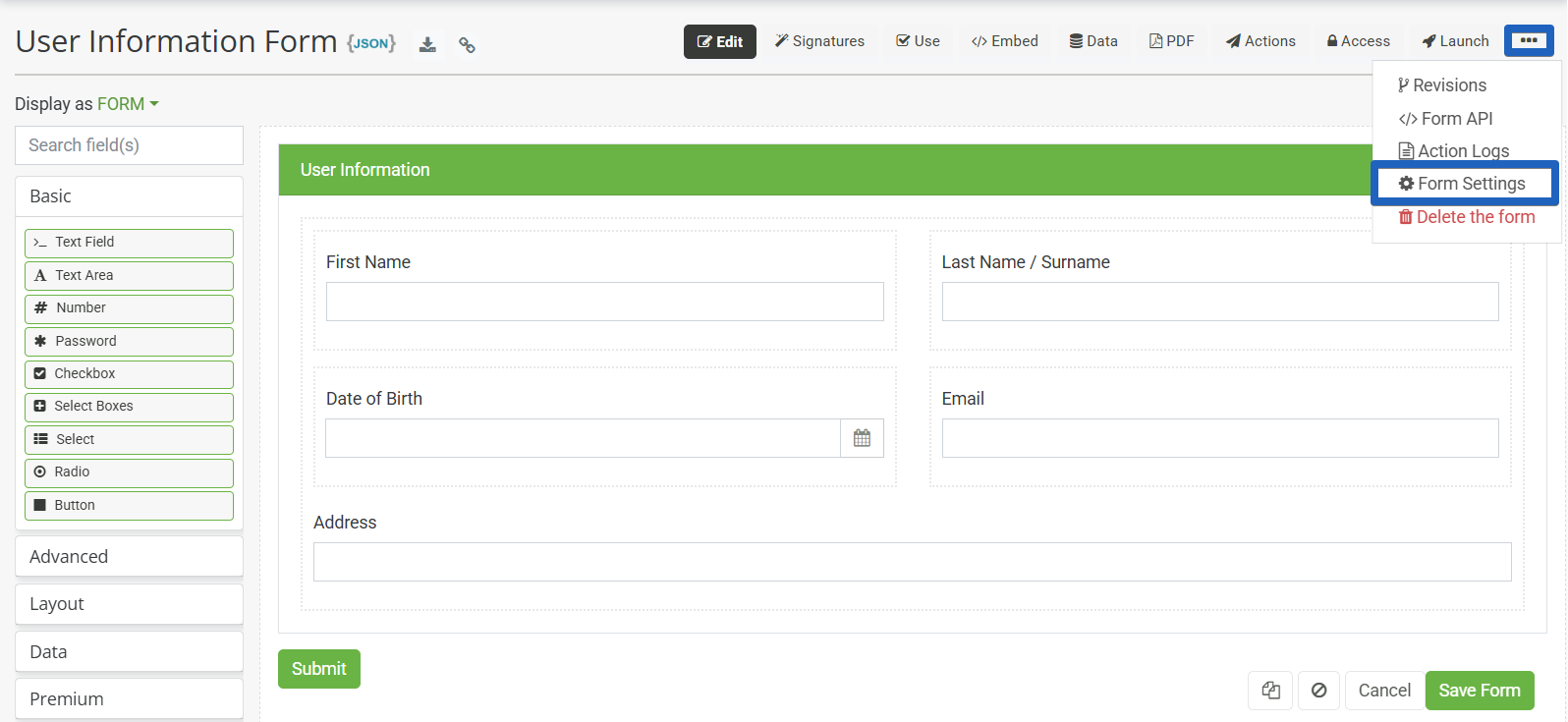
Click the **Form Settings tab** and locate the PDF Settings section.

<figure><img src="/files/5zwfyPD82eSLR8hFMZ4x" alt=""><figcaption></figcaption></figure>

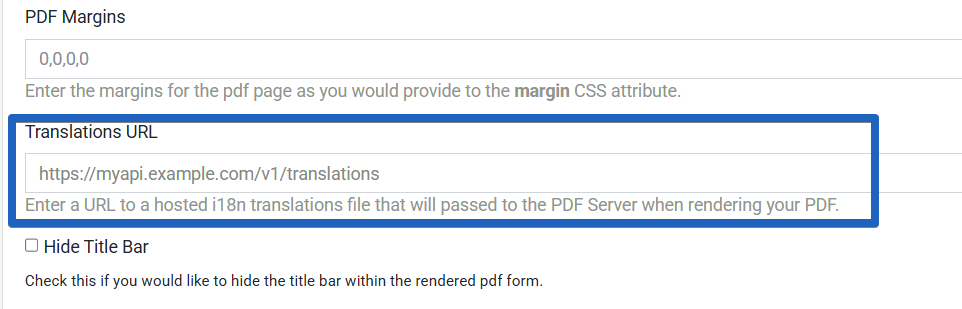
Navigate to the **PDF Settings** section and paste the hosted endpoint URL in the **Translation URL** setting field.

<figure><img src="/files/z0SPoy3Pr5Ok6oHV5rGD" alt=""><figcaption></figcaption></figure>

**Save** the form settings.

### 4. Test PDF Translation

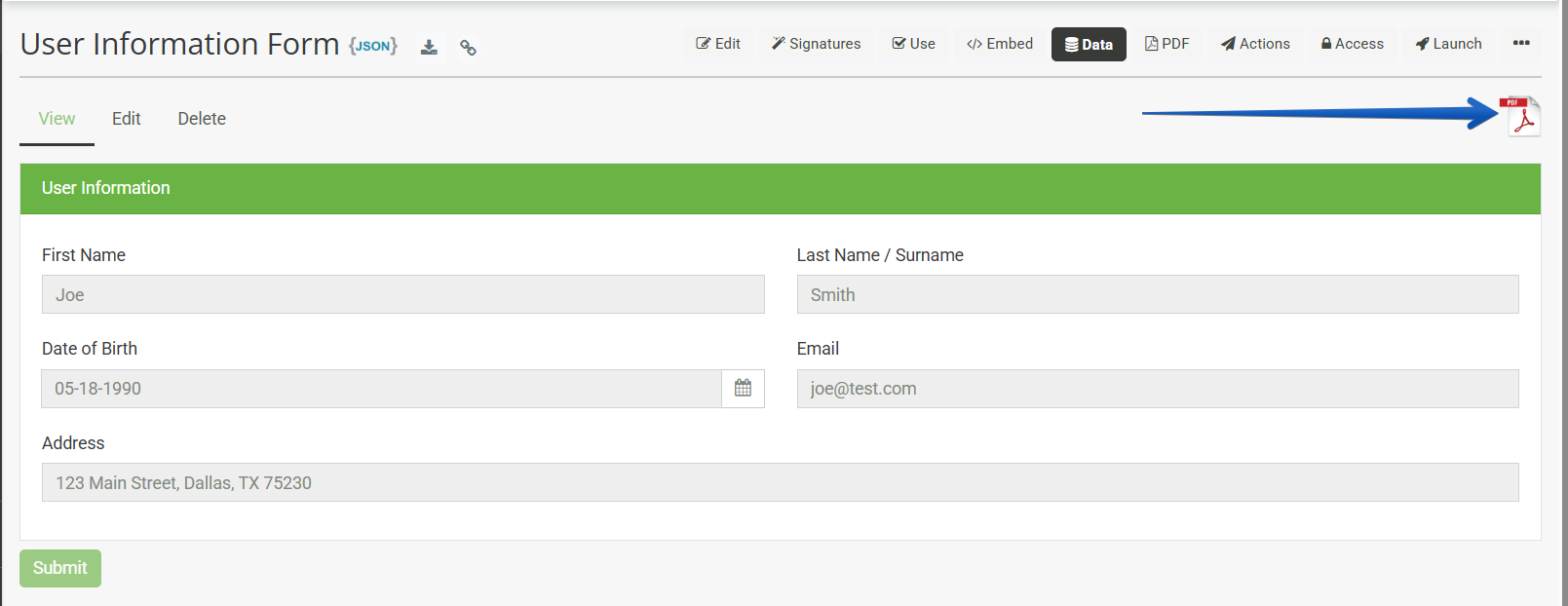
To test the PDF Translation manually, make a submission using your form and **download** the submission as a **PDF**.

<figure><img src="/files/UYDlMBGarLKgo5bWkZ2F" alt=""><figcaption></figcaption></figure>

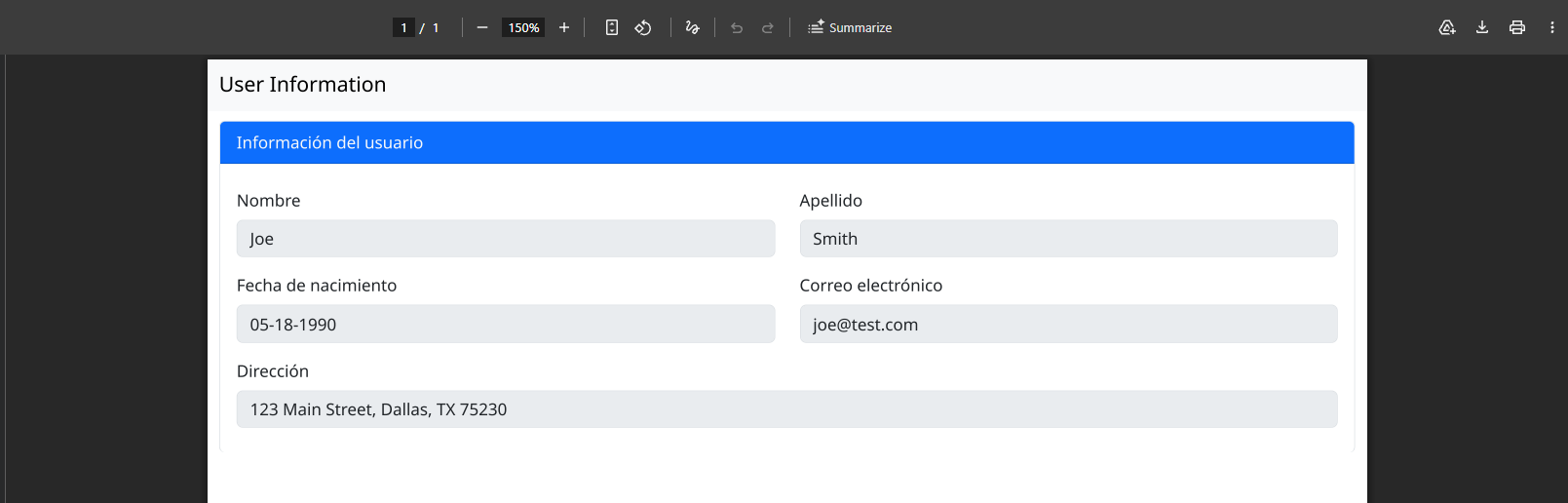
In the browser, append the **language query parameter** `&language=example` to the PDF download URL:

```
https://your-server/form/<id>/submission/<id>/download&language=es
```

{% hint style="info" %}
Only text strings that exist as keys in the translations JSON will be translated. Text not found in the JSON remains in its original language.
{% endhint %}

<figure><img src="/files/aowaPrKgmoNjPfXUXjUF" alt=""><figcaption></figcaption></figure>

### 5. Switching Languages

Each PDF download request is stateless. Passing a different `language` parameter value generates a new PDF in the selected language. No changes to the form or submission are required.

`https://your-server/submission/<id>/download&language=ru`\
`https://your-server/submission/<id>/download&language=zh`

{% hint style="info" %}
In production, switching languages would typically be handled by the application — for example, re-triggering the PDF download request with an updated language value when the user changes their language selection.
{% endhint %}

## Troubleshooting

<table><thead><tr><th width="191.800048828125">Symptom</th><th width="234.5999755859375">Likely Cause</th><th>Resolution</th></tr></thead><tbody><tr><td>PDF downloads in original language despite parameter</td><td>Translations URL not saved, or endpoint inaccessible</td><td>Verify the URL is saved in Form Settings and returns valid JSON when opened in a browser</td></tr><tr><td>Some fields are not translated</td><td>Field text does not exactly match a key in the JSON</td><td>Check for typos, trailing spaces, or capitalization differences between the form text and JSON keys</td></tr><tr><td>Unsupported language code used</td><td>Language code not present in the JSON file</td><td>Add the missing language block to the JSON file and re-save the endpoint</td></tr><tr><td>PDF server returns an error on download</td><td>JSON endpoint unavailable or returning invalid content</td><td>Confirm the endpoint is active, publicly accessible, and returning valid JSON</td></tr></tbody></table>


---

# Agent Instructions
This documentation is published with GitBook. GitBook is the documentation platform designed so that both humans and AI agents can read, navigate, and reason over technical content effectively. Learn more at gitbook.com.

## Querying This Documentation
If you need additional information that is not directly available in this page, you can query the documentation dynamically by asking a question.

Perform an HTTP GET request on the current page URL with the `ask` query parameter, and the optional `goal` query parameter:

```
GET https://help.form.io/form-building/pdf-forms/dynamic-pdf-translation.md?ask=<question>&goal=<endgoal>
```

`ask` is the immediate question: it should be specific, self-contained, and written in natural language.
`goal` is optional and describes the broader end goal you are ultimately trying to accomplish on behalf of the user. GitBook uses it to tailor the answer towards what is most useful for that goal.

The response will contain a direct answer to the question and relevant excerpts and sources from the documentation.

Use this mechanism when the answer is not explicitly present in the current page, you need clarification or additional context, or you want to retrieve related documentation sections.