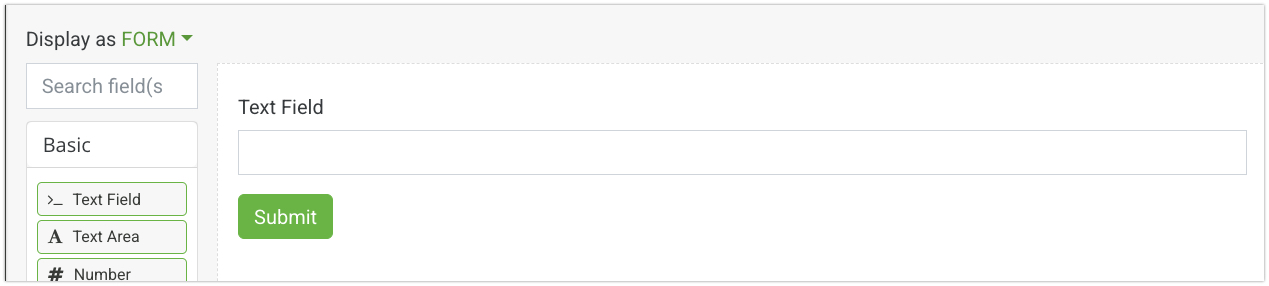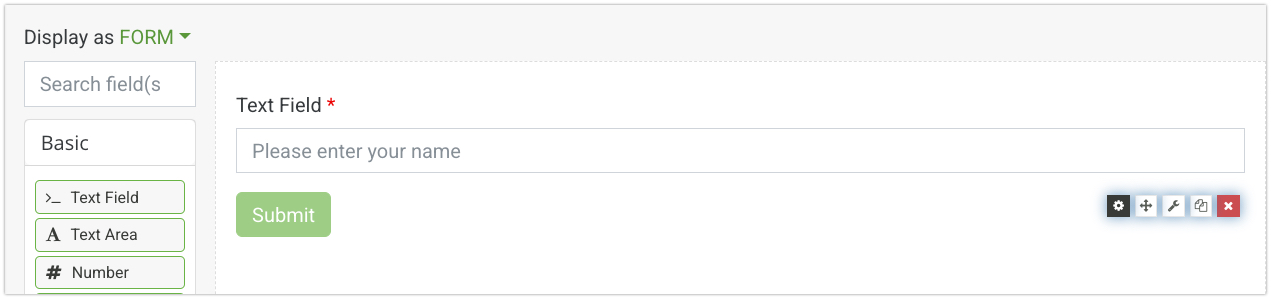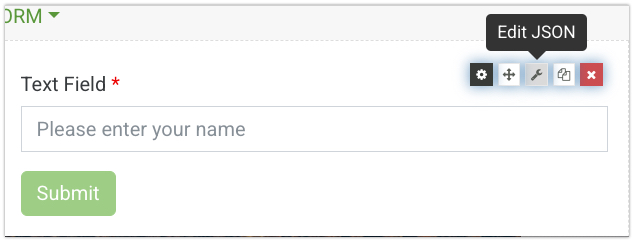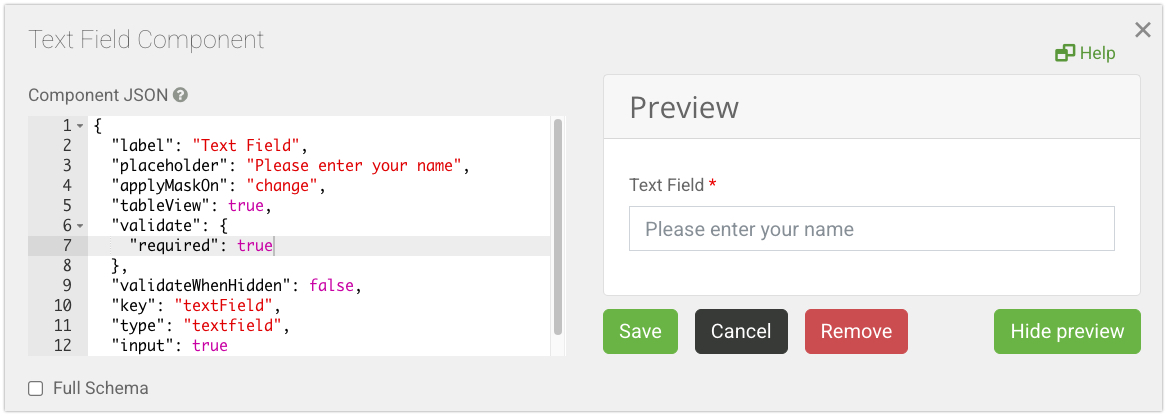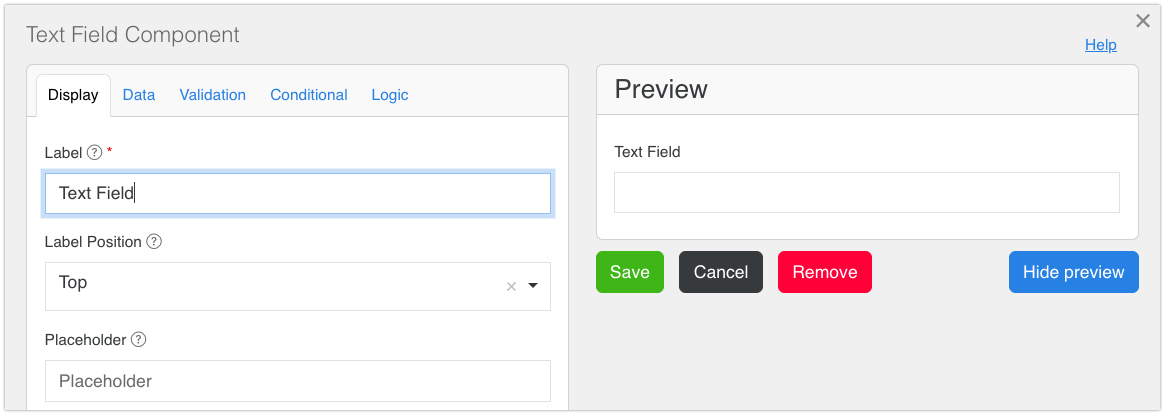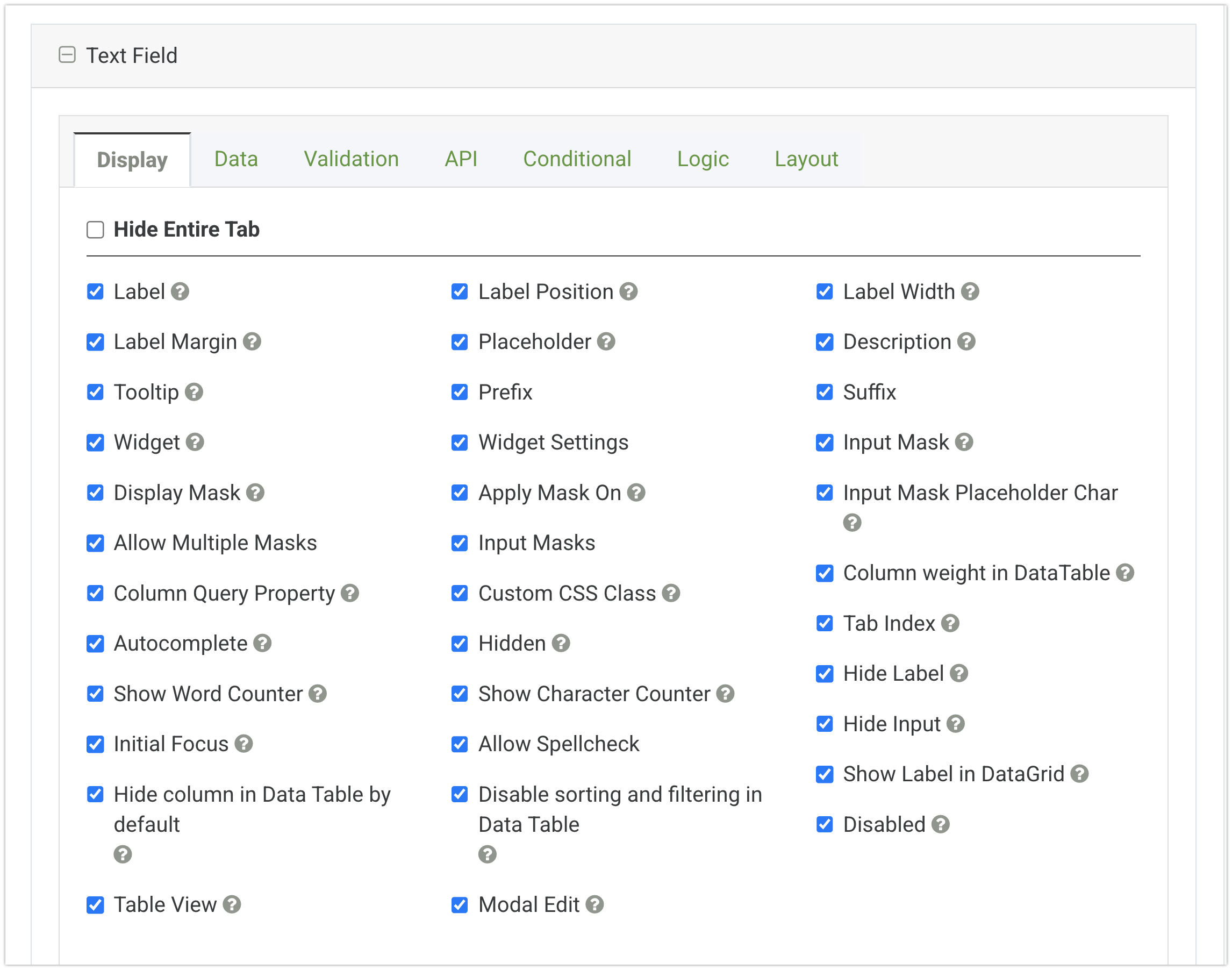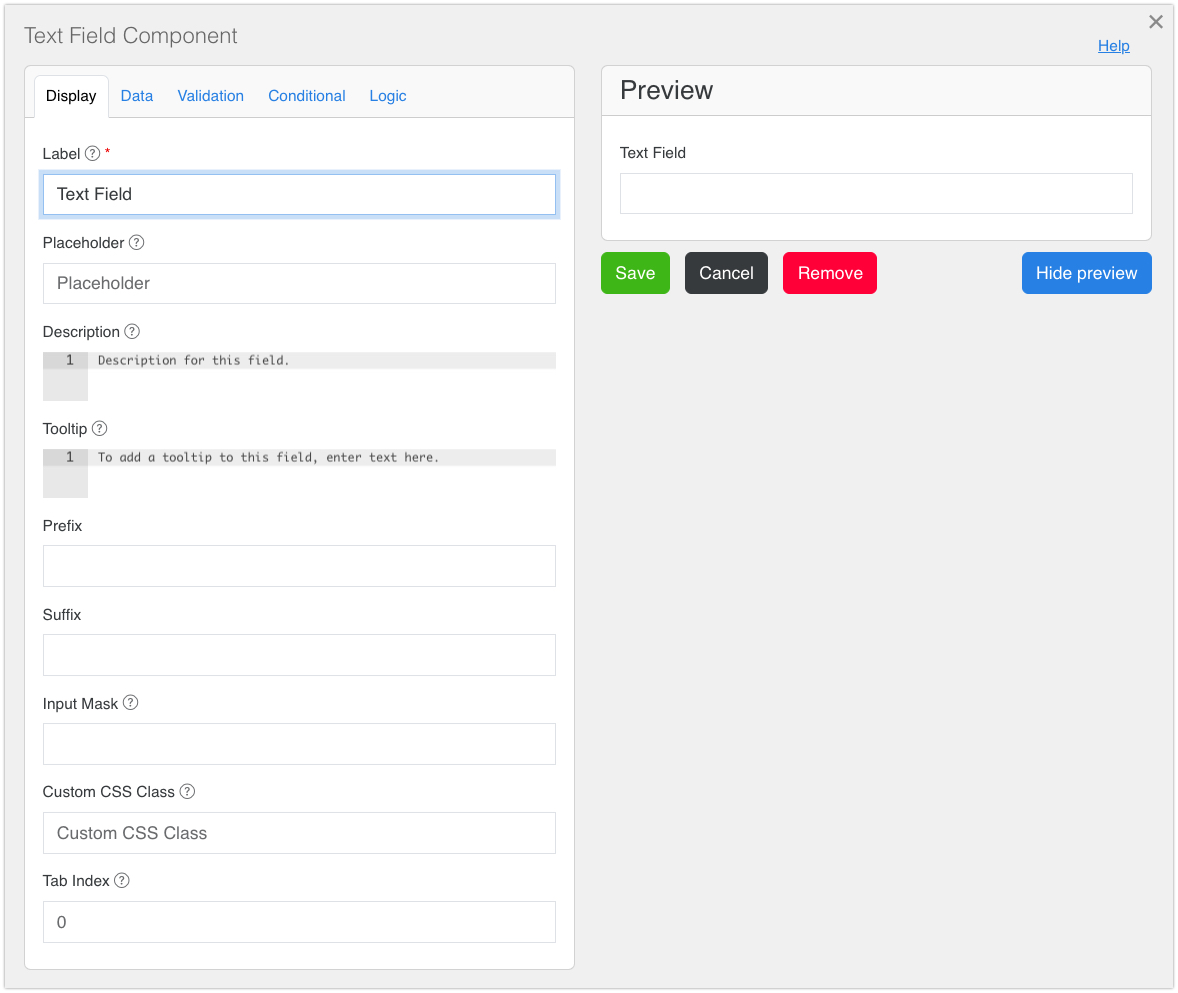
# Using Enterprise Form Builder

Once the Enterprise Form Builder module has been properly installed and integrated within your environment, the Module is ready to be used.&#x20;

{% hint style="info" %}
If you do not see the Form Builder Pro within your project, ensure the module has been properly [**installed**](https://help.form.io/userguide/enterprise-form-builder-module/application-integration) and the correct [**library** **license** ](https://help.form.io/deployments/licenses/library-licenses)has been allocated to your environment.
{% endhint %}

This documentation mentions both, **Form Builder Pro** and **Enterprise Form Builder**. These are related, but distinct, parts of the platform:

* **Form Builder Pro:** UI within a Form.io project that developers utilize  to manage and customize the Enterprise Form Builder.
* **Enterprise Form Builder:** The form builder embedded within your application controlled by Form Builder Pro.&#x20;

## Accessing Form Builder Pro

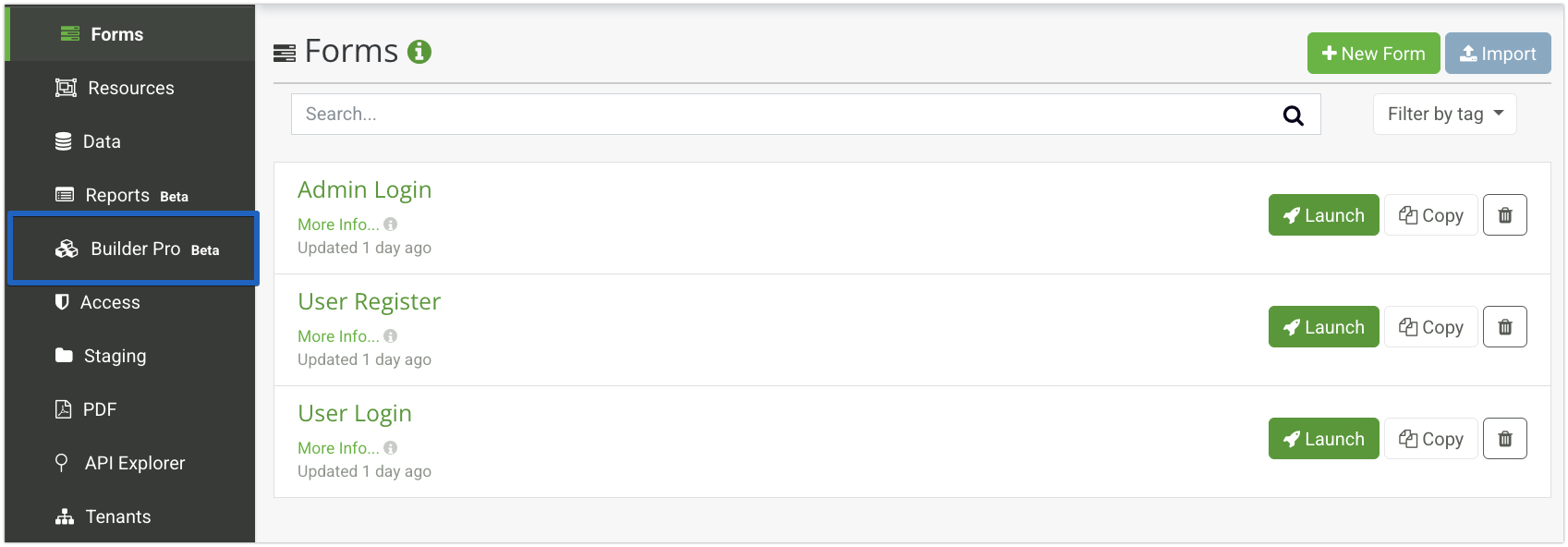
Once enabled, the Form Builder Pro will be available in the UI of a project.&#x20;

1. Navigate to any **project** within your deployed environment.&#x20;
2. Click the **Builder Pro** tab from the left-hand navigation bar.

<figure><img src="https://3305536326-files.gitbook.io/~/files/v0/b/gitbook-x-prod.appspot.com/o/spaces%2F-MPHoF2HwOA0s5HV_AIB%2Fuploads%2FG7EjvauUCInwPB6ZmpK1%2Fbuilderproject.jpg?alt=media&#x26;token=a2890e2a-2e22-4c81-bfc3-c099d0e38525" alt=""><figcaption></figcaption></figure>

## Form Builder Pro UI

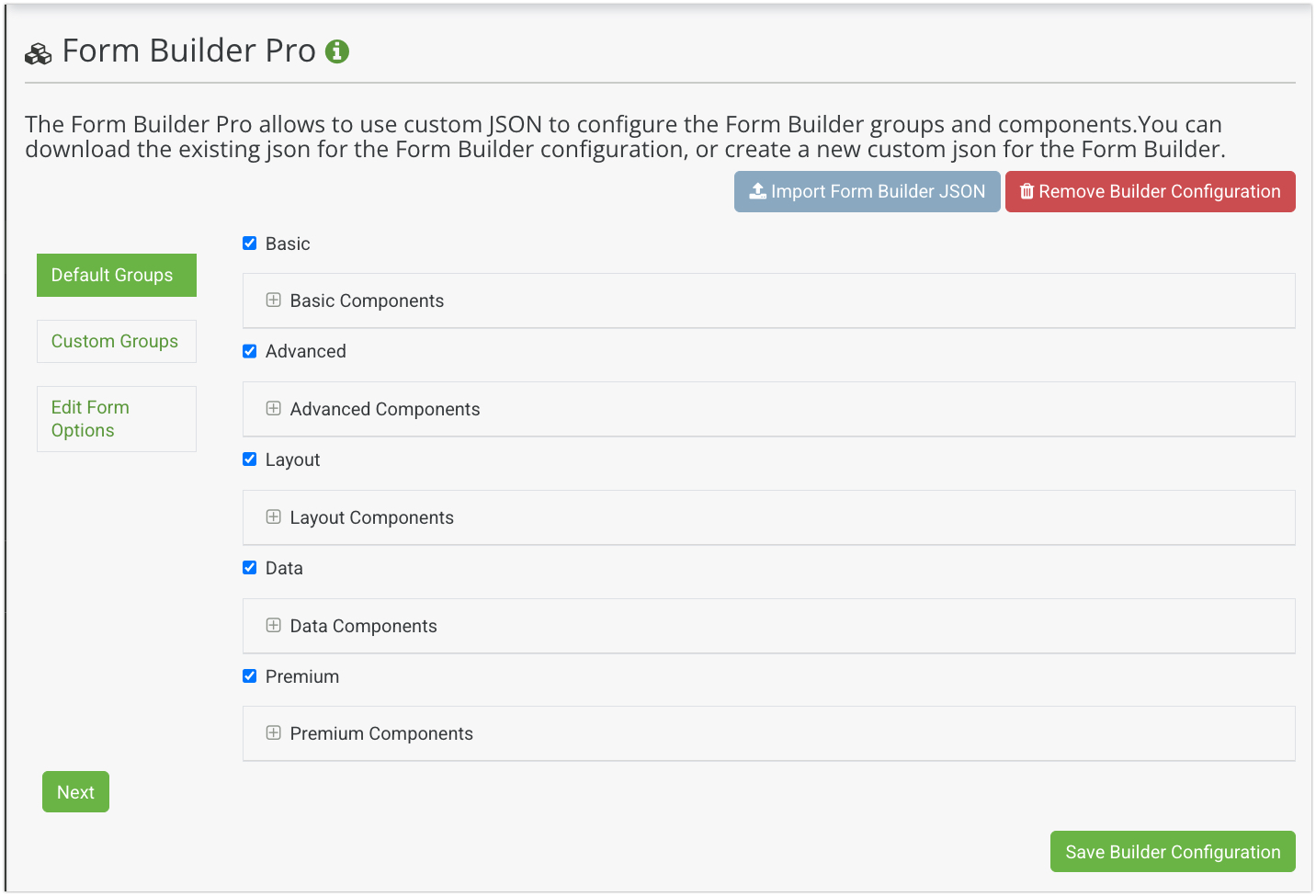
The Enterprise Form Builder Module provides a user-friendly interface called **Form Builder Pro** for creating a custom form builder that can be embedded directly into your application. Any changes made within Form Builder Pro  will directly update the Enterprise Form Builder embedded within your app.

<figure><img src="https://3305536326-files.gitbook.io/~/files/v0/b/gitbook-x-prod.appspot.com/o/spaces%2F-MPHoF2HwOA0s5HV_AIB%2Fuploads%2F44UAr7Lp4b1Couu6R9El%2FEFBUI.jpg?alt=media&#x26;token=da6b69ad-2c21-4e78-9183-0730a81ff41a" alt=""><figcaption></figcaption></figure>

<table><thead><tr><th width="253.63037109375">Setting</th><th>Description</th></tr></thead><tbody><tr><td><strong>Import Form Builder JSON</strong></td><td>Import a JSON file from another Project or Stage to include the configurations and settings of the exported Form Builder Pro. </td></tr><tr><td><strong>Remove Builder Configuration</strong></td><td>Removes <strong>all</strong> configurations and custom settings, returning  the builder , including all custom groupings, settings, and fields to their default state. </td></tr><tr><td><strong>Default Groups</strong></td><td>The default components groupings that contain the Form Builder components. </td></tr><tr><td><strong>Custom Groups</strong></td><td>Create a new component grouping for the Form Builder containing standard or Pre-Defined fields. </td></tr><tr><td><strong>Edit Form Options</strong></td><td>Customize the general setting tabs for all components and settings specific to an individual component.</td></tr><tr><td><strong>Next</strong></td><td>Navigate through the Form Builder Pro tabs</td></tr><tr><td><strong>Save Builder Configurations</strong></td><td>Saves all configurations and settings. This will update the Enterprise Form Builder in real time embedded within your application. </td></tr></tbody></table>

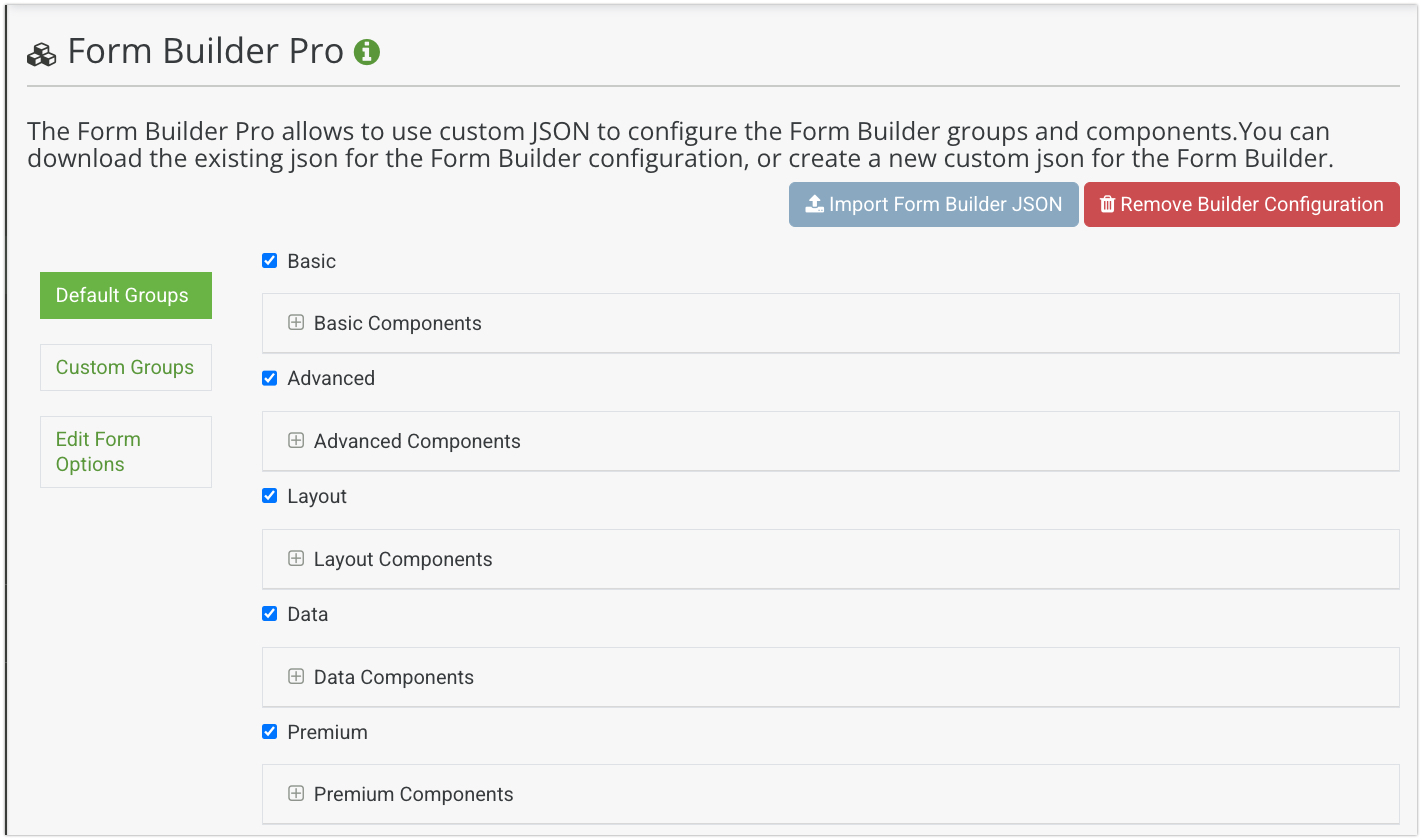
## Default Groups

The default component groups available in the Enterprise Form Builder. These groups reflect the same Form.io groupings found within the standard builder included in the a Form.io Project.&#x20;

<figure><img src="https://3305536326-files.gitbook.io/~/files/v0/b/gitbook-x-prod.appspot.com/o/spaces%2F-MPHoF2HwOA0s5HV_AIB%2Fuploads%2FYrT004fehYaxadq4j9M5%2Fdeafultgroups.jpg?alt=media&#x26;token=cad06087-d6b3-4f10-a6e5-cc53583a9b45" alt=""><figcaption></figcaption></figure>

#### **Removing Default Groups**

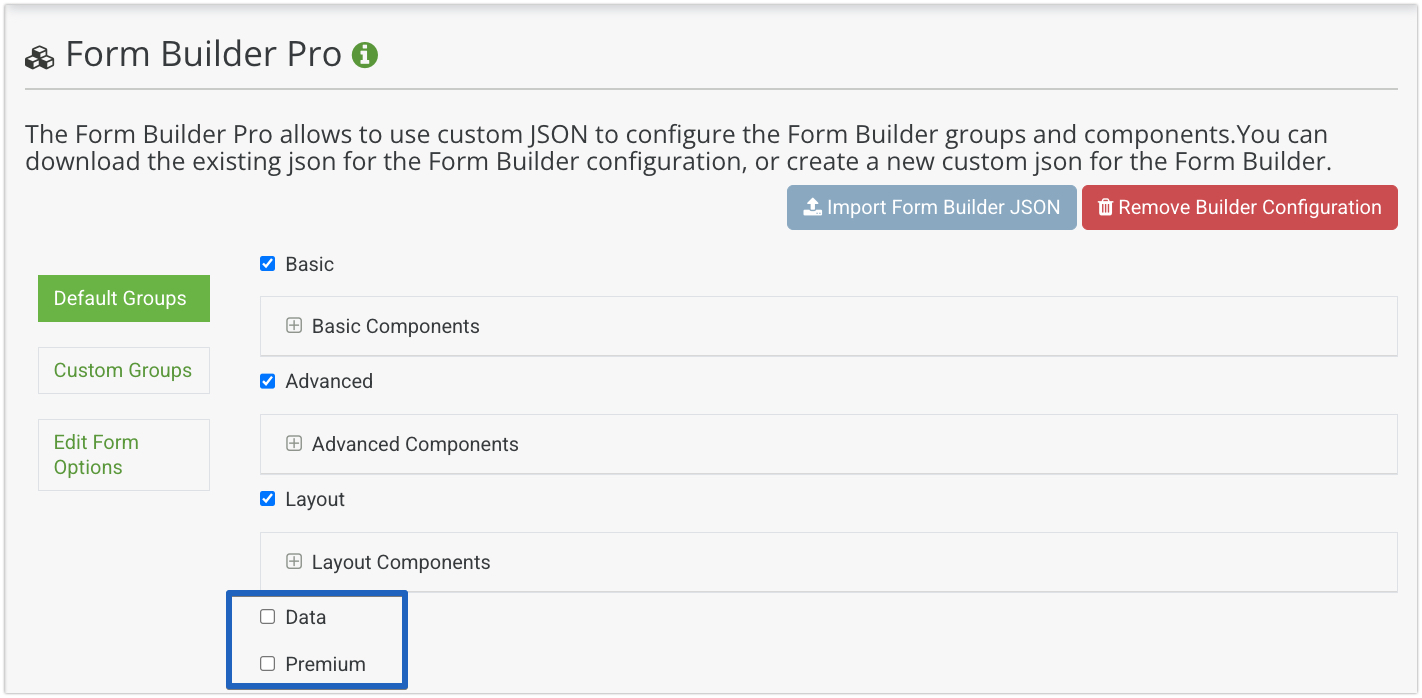
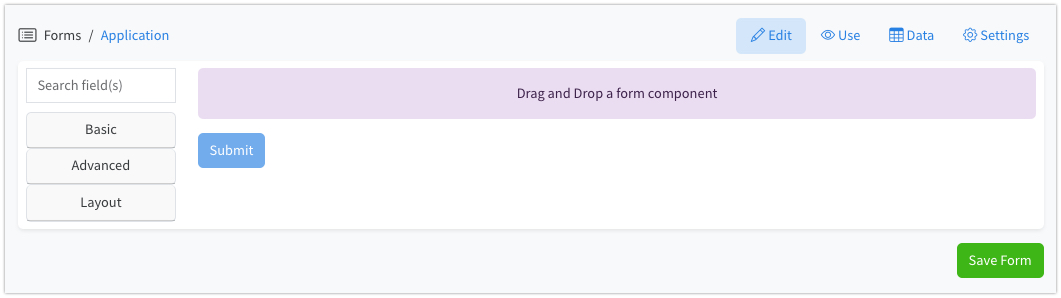
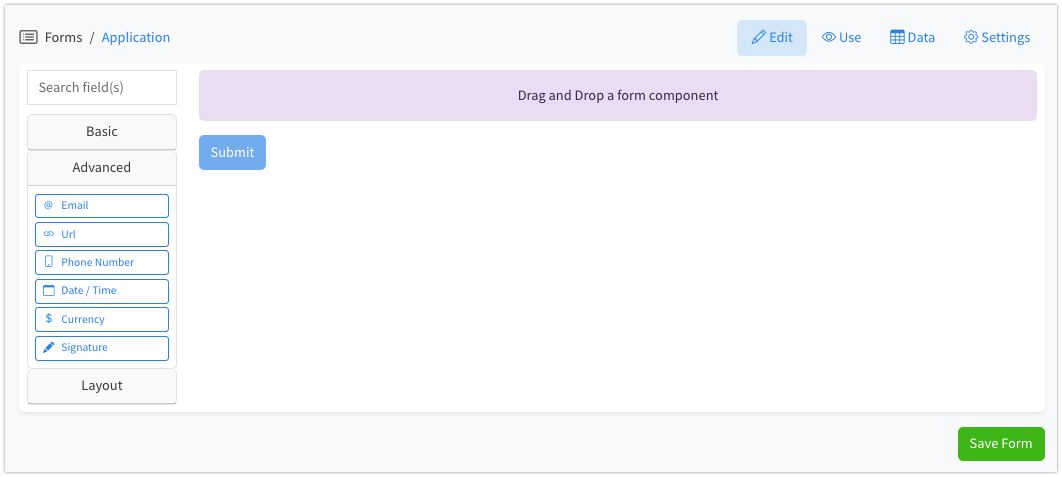
At times, entire component groupings might not be relevant for your Form Building requirements. Any default grouping can be toggled on or off as needed, removing the group and all  components inside the group from the Enterprise Form Builder.

1. Within the Form Builder Pro UI, click the **Default Groups** tab
2. **Uncheck** a grouping to remove both the group and all  component inside this group from the Enterprise Form Builder.

<figure><img src="https://3305536326-files.gitbook.io/~/files/v0/b/gitbook-x-prod.appspot.com/o/spaces%2F-MPHoF2HwOA0s5HV_AIB%2Fuploads%2FZyfaxjCsydr1GdWXFjQW%2Fremovegroupings.jpg?alt=media&#x26;token=c829c24b-bcb1-4592-9430-9df68ada0775" alt=""><figcaption></figcaption></figure>

&#x33;**.** Click '**Save Builder Configuration**' to apply your settings. Update your application to reflect the changes in the Enterprise Form Builder.

<figure><img src="https://3305536326-files.gitbook.io/~/files/v0/b/gitbook-x-prod.appspot.com/o/spaces%2F-MPHoF2HwOA0s5HV_AIB%2Fuploads%2FslURuYkHH8wDsJ45syVh%2Fefb-updategroups.jpg?alt=media&#x26;token=1ae0b90f-5c2f-4b58-a419-48c2033135f9" alt=""><figcaption><p>Enterprise Form Builder with the Data and Premium groups removed</p></figcaption></figure>

#### **Removing Default Components**

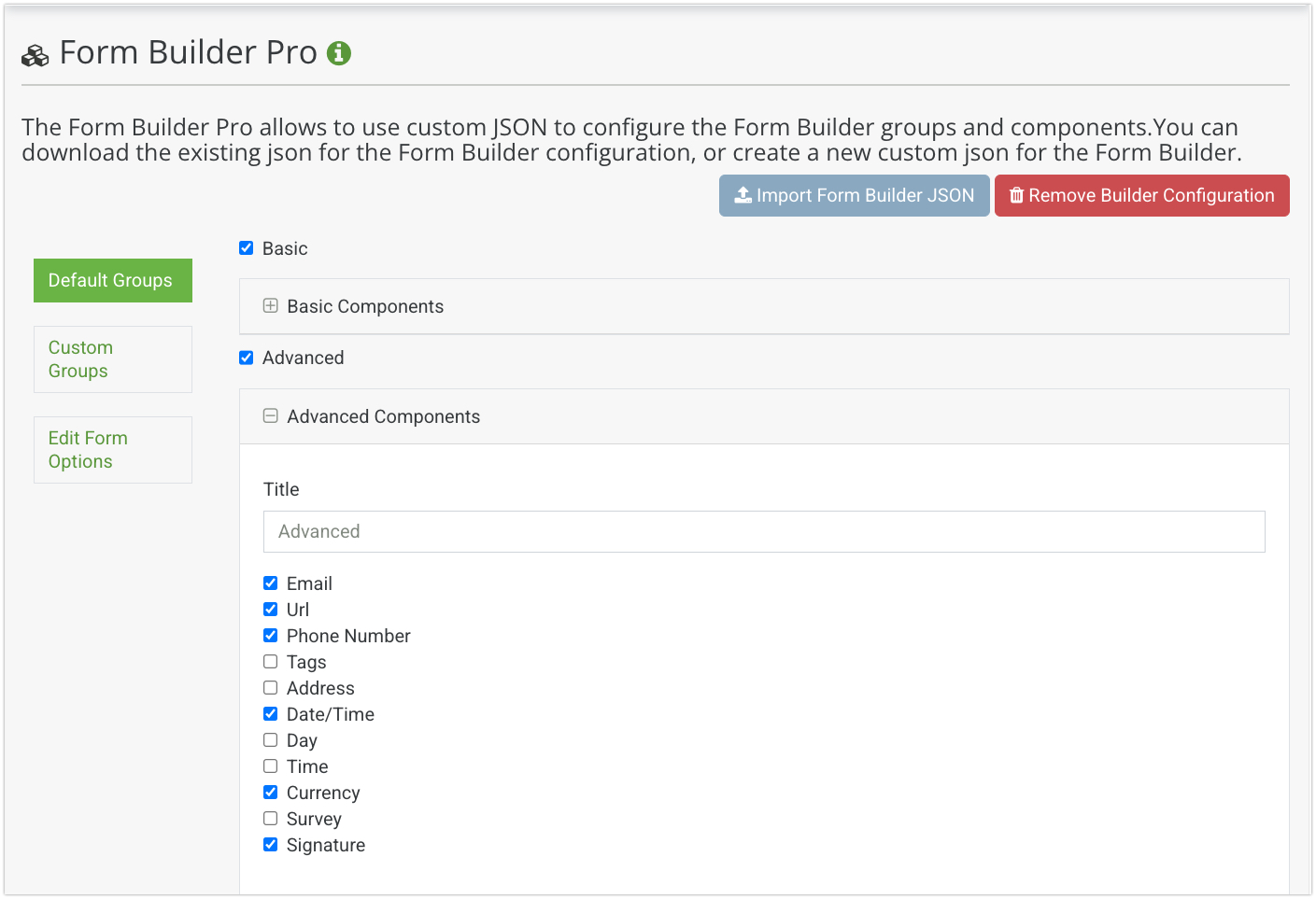
To remove a component from a default group, start by expanding the group to view all included components. Simply uncheck the components that are not required for the Enterprise Form Builder to remove them from the Default Group.

1. Click the + **button** to expand the grouping, displaying available components within that grouping
2. **Uncheck** a Component to remove it from the grouping and builder

<figure><img src="https://3305536326-files.gitbook.io/~/files/v0/b/gitbook-x-prod.appspot.com/o/spaces%2F-MPHoF2HwOA0s5HV_AIB%2Fuploads%2FucnAnzVYw3xFmRrHFPc9%2Fefb%20remove%20builder.jpg?alt=media&#x26;token=8409dbd7-54d6-4b9d-9991-6dd5366305f8" alt=""><figcaption></figcaption></figure>

&#x33;**.** Click '**Save Builder Configuration**' to apply your settings. Update your application to reflect the changes in the Enterprise Form Builder.

<figure><img src="https://3305536326-files.gitbook.io/~/files/v0/b/gitbook-x-prod.appspot.com/o/spaces%2F-MPHoF2HwOA0s5HV_AIB%2Fuploads%2FxCiOte7rcJbFwVePe8Oe%2Fefb-updatedefaultcomponents.jpg?alt=media&#x26;token=02b3ae5f-fcc6-4a10-a8c6-a0c7c9414f95" alt=""><figcaption><p>Enterprise Form Builder - Various components removed from Advanced group</p></figcaption></figure>

## Custom Groups

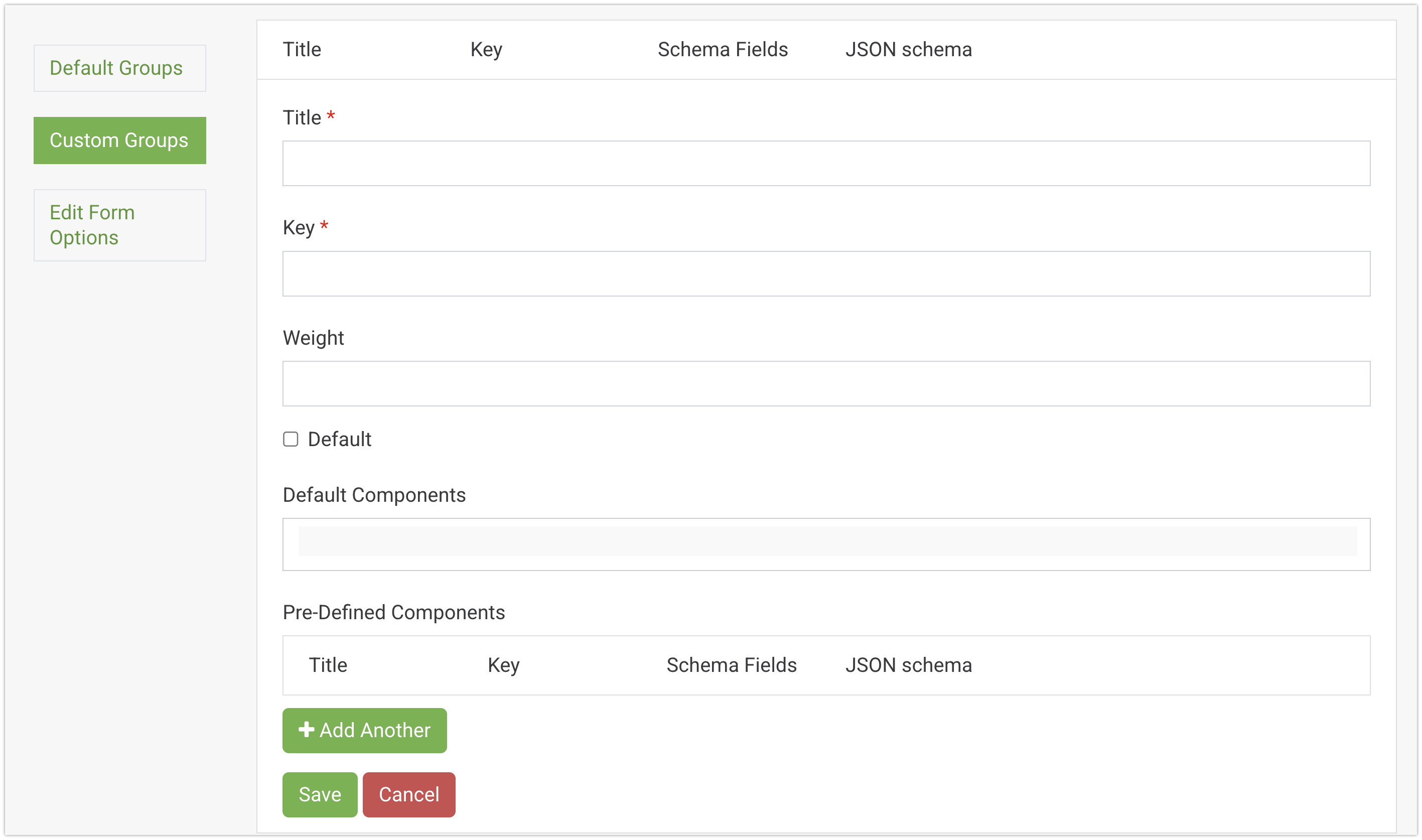
Custom groups are utilized to house default or pre-defined components within the Enterprise Form Builder.&#x20;

<figure><img src="https://3305536326-files.gitbook.io/~/files/v0/b/gitbook-x-prod.appspot.com/o/spaces%2F-MPHoF2HwOA0s5HV_AIB%2Fuploads%2FLFEJGBhE33omlOX1VQXE%2Fcustomgroups.jpg?alt=media&#x26;token=3dc463c9-2927-4454-8875-b0e101d567bb" alt=""><figcaption></figcaption></figure>

#### Custom Group Settings

<table data-header-hidden><thead><tr><th width="182.2799072265625"></th><th></th></tr></thead><tbody><tr><td><strong>Title</strong></td><td>The name of the Custom Group that will display within the builder. </td></tr><tr><td><strong>Key</strong></td><td>The backend identifier for the custom group.</td></tr><tr><td><strong>Weight</strong></td><td>Numerical order of where the custom group will appear in the grouping list. </td></tr><tr><td><strong>Default</strong></td><td>Checking the Default checkbox will expand this group when a user initially opens the builder, revealing the available components within the group.  </td></tr><tr><td><strong>Default Components</strong></td><td>Form.io default components that can be added to the custom group.</td></tr><tr><td><strong>+Add Another</strong></td><td>Add a new Custom Group </td></tr><tr><td><strong>Save/Cancel</strong></td><td>Save or Cancel the custom group.</td></tr></tbody></table>

#### Creating Custom Groups

1. Click the **Custom Groups** tab.
2. Click the **+Add Another** button.

<figure><img src="https://3305536326-files.gitbook.io/~/files/v0/b/gitbook-x-prod.appspot.com/o/spaces%2F-MPHoF2HwOA0s5HV_AIB%2Fuploads%2Fa1M4LhNwwKD6A01R1oya%2Fcustomgroups%20-%20emptyfields.jpg?alt=media&#x26;token=8682e789-440b-46ad-93ce-bd3c11dc4da5" alt=""><figcaption></figcaption></figure>

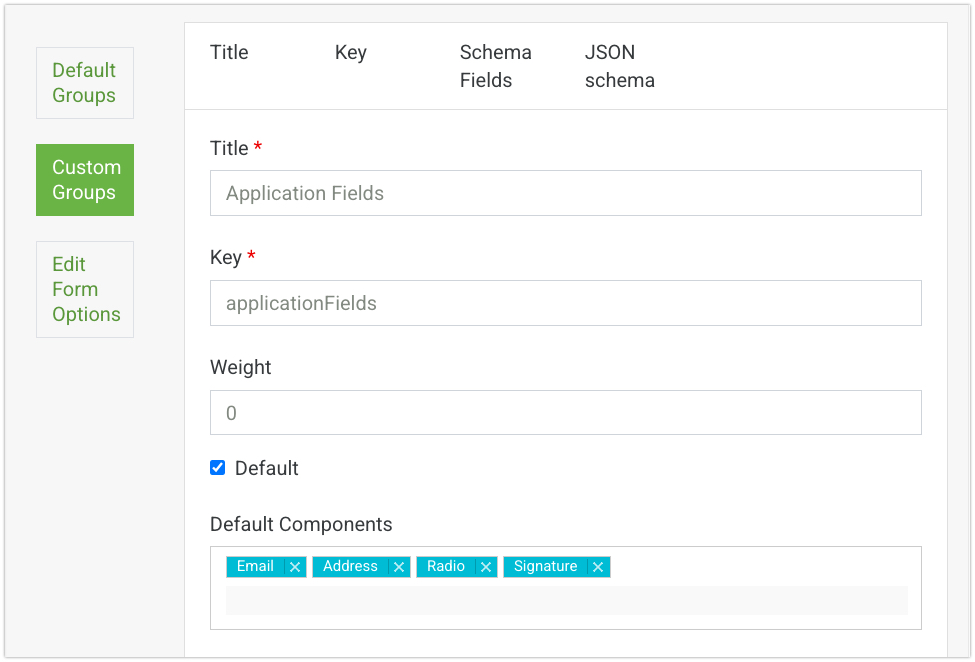
3. Input a **Title** for the group. This title will be the group's name within the Enterprise Form Builder.
4. Set a **Key** for the group which will be used to reference the custom group programmatically.
5. Set a **Weight** to the group to determine its position relative to other groups within the Enterprise Form Builder.
6. Check the **Default** setting to have this Custom Group expanded by default when users initially open the Enterprise Form Builder
7. Add any standard Form.io **Default Components** that should be included within the Custom Group.

<figure><img src="https://3305536326-files.gitbook.io/~/files/v0/b/gitbook-x-prod.appspot.com/o/spaces%2F-MPHoF2HwOA0s5HV_AIB%2Fuploads%2FEy1fVyC5yDluBDSH8iNh%2Fefb-customgroup.jpg?alt=media&#x26;token=76b3421c-f48a-48a4-81bf-e7243b351e3e" alt=""><figcaption></figcaption></figure>

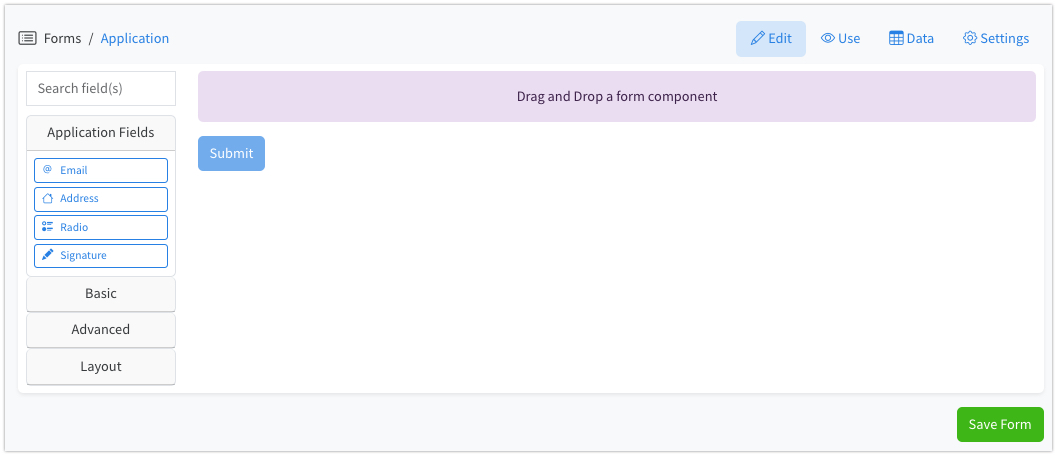
&#x38;**.** Click '**Save Builder Configuration**' to apply your settings. Update your application to reflect the changes in the Enterprise Form Builder.

<figure><img src="https://3305536326-files.gitbook.io/~/files/v0/b/gitbook-x-prod.appspot.com/o/spaces%2F-MPHoF2HwOA0s5HV_AIB%2Fuploads%2Fluj6XhVFkPtSkV527xD4%2Fefb-customgroups.jpg?alt=media&#x26;token=ca7dca54-0924-4956-a0ea-11361bf78d7a" alt=""><figcaption><p>Enterprise Form Builder - Custom Group with Default Components</p></figcaption></figure>

### **Pre-Defined Components**

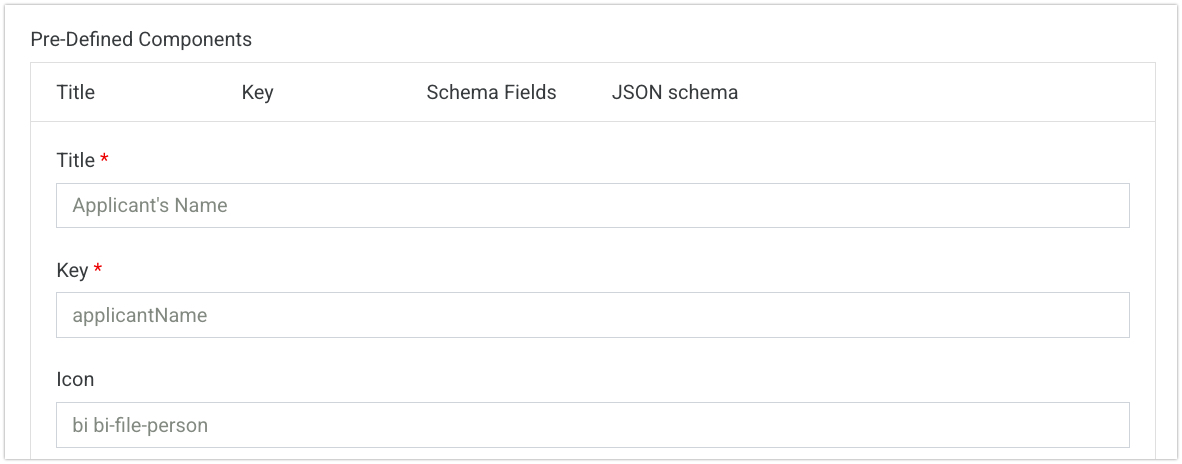
Enhance custom group by adding predefined components, making them available for use within the Enterprise Form Builder. These components are built on standard Form.io components. Settings can be further tailored to fit the specific requirements of your application's form building needs.

#### Pre-Defined Component Settings

<table><thead><tr><th width="138.95465087890625">Setting</th><th>Description</th></tr></thead><tbody><tr><td><strong>Title</strong></td><td>The name of the Pre-Defined Component that will display within the custom group. </td></tr><tr><td><strong>Key</strong></td><td>The backend identifier of the component within the custom group.</td></tr><tr><td><strong>Icon</strong></td><td>Add icons based on the CSS framework being utilized within your application. </td></tr><tr><td><strong>Save/Cancel</strong></td><td>Save or Cancel the Custom Group settings. Users will still need to click the <strong>Save Builder Configurations</strong> in order to save  the changes. </td></tr><tr><td><strong>+Add Another</strong></td><td>Add and define a new Component to the Custom Group.</td></tr></tbody></table>

#### Creating Pre-Defined Component&#x20;

1. Within the Custom Group, click the **+Add Another** button. This will present a new set of fields to define the component.&#x20;
2. Add a **Label** which will represent the default name of the component within the custom group.
3. The **Key** will auto-populate based on the Label input. This identifier will be used within the custom group to communicate with the backend APIs.&#x20;
4. Add an **Icon** to the field based on the CSS framework type used within your application. The icon will display next to the field Title when viewing the component in the Enterprise Form Builder

{% hint style="info" %}
In this example, [**Bootstrap**](https://icons.getbootstrap.com/) is being utilized as the application's front-end framework, so the Icon name in this instance will look something like this \
`bi bi-info`

The icon will require a different naming convention depending on the type of front-end framework your application is utilizing.&#x20;
{% endhint %}

<figure><img src="https://3305536326-files.gitbook.io/~/files/v0/b/gitbook-x-prod.appspot.com/o/spaces%2F-MPHoF2HwOA0s5HV_AIB%2Fuploads%2FkqZfYzLG0hKRHQMPg9Mu%2Fpredefined-application.jpg?alt=media&#x26;token=ec261a45-a9c6-4ed3-adb8-cf7ce8589f45" alt=""><figcaption></figcaption></figure>

5. Click '**Save Builder Configuration**' to apply your settings. Update your application to reflect the changes in the Enterprise Form Builder.

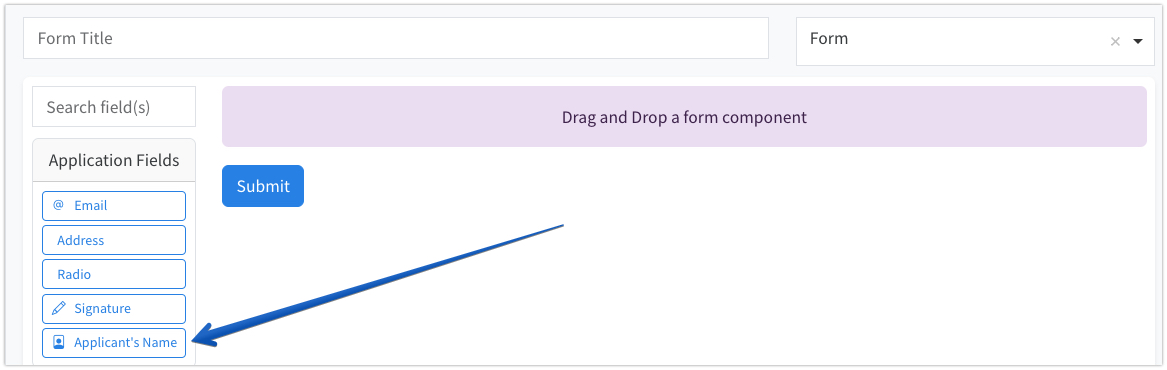
<figure><img src="https://3305536326-files.gitbook.io/~/files/v0/b/gitbook-x-prod.appspot.com/o/spaces%2F-MPHoF2HwOA0s5HV_AIB%2Fuploads%2FRjQxojSvfAb8eNG3UVl2%2Fapplicantsname.jpg?alt=media&#x26;token=53e867ba-87bc-48d8-b46b-40f47433a335" alt=""><figcaption></figcaption></figure>

{% tabs %}
{% tab title="Schema Fields" %}
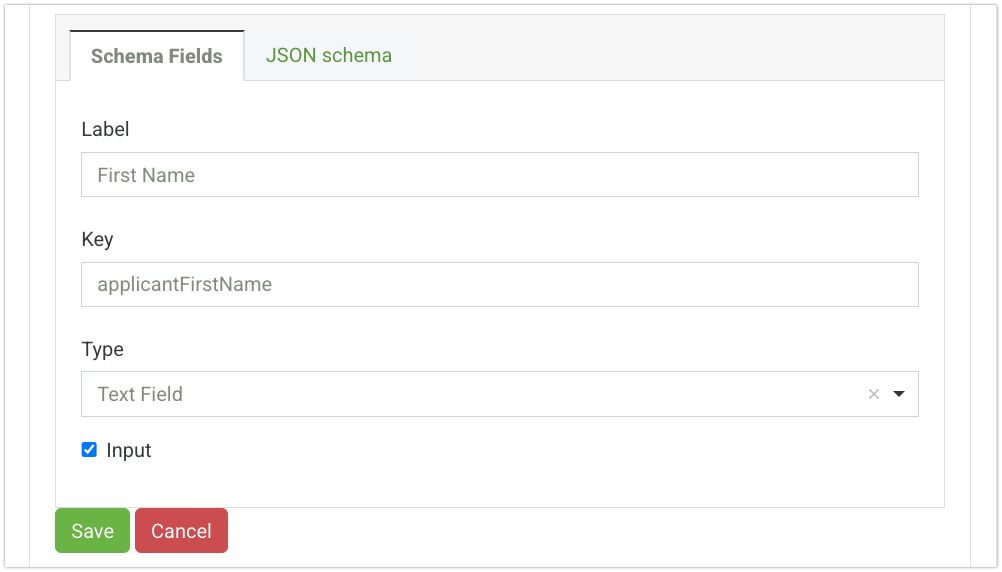
The Schema Field settings define the name and type of the component that will appear when a form builder adds this pre-defined field to a form using the Enterprise Form Builder. Settings like the Label and Key will auto-populate based on the [**Title/Key**](#pre-defined-component-settings) settings set for the Pre-Defined Component but can be changed if needed.

These settings can differ from the Pre-Defined Component settings found above. A unique Label and Key can be given to the component which will represent the component name when a Form Builder adds the component to the Enterprise Form Builder vs the component name that appears inside the Custom Group. &#x20;

#### Schema Field Settings

<table><thead><tr><th width="163.416748046875">Setting</th><th>Description</th></tr></thead><tbody><tr><td><strong>Label</strong></td><td>The default, front-end name of the component that will display for the end-user. The Label will auto-populate based on the Pre-Defined Component <a href="#pre-defined-component-settings"><strong>Title</strong></a>. </td></tr><tr><td><strong>Key</strong></td><td>The back-end identifier of the component that will communicate with the APIs. This field is auto-populated in camelCase based on the initial <a href="#pre-defined-component-settings"><strong>Key</strong></a> given in the Pre-Defined Component settings. Each field's Property Name must be unique on the form before the form can be saved.</td></tr><tr><td><strong>Type</strong></td><td>Select a default component the pre-defined component will be based on. All settings will carry over from the default component. </td></tr><tr><td><strong>Input</strong></td><td>Saves the input data to the submission object. </td></tr></tbody></table>

#### Add Schema Settings Component&#x20;

1. Within the Custom Group, click the **+Add Another** button. This will present a new set of fields to define the component.
2. Add a **Label** which will represent the default name of the component when the component is added to the form using the Enterprise Form Builder.
3. The **Key** will auto-populate in camelcase based on the Label input. This identifier will be used in the context of the form to communicate with the backend APIs.&#x20;
4. Select the Component **Type** from the list of Form.io fields the component will be based on. In this example, since this is a text input name field, the Text Field has been selected.

<figure><img src="https://3305536326-files.gitbook.io/~/files/v0/b/gitbook-x-prod.appspot.com/o/spaces%2F-MPHoF2HwOA0s5HV_AIB%2Fuploads%2Fxo5NcjFZ5NicVfTTipcv%2Fschemafields.jpg?alt=media&#x26;token=a57a7666-39ce-4add-908f-e8af43f4c8bb" alt=""><figcaption></figcaption></figure>

5. Click '**Save Builder Configuration**' to apply your settings. Update your application to reflect the changes in the Enterprise Form Builder.

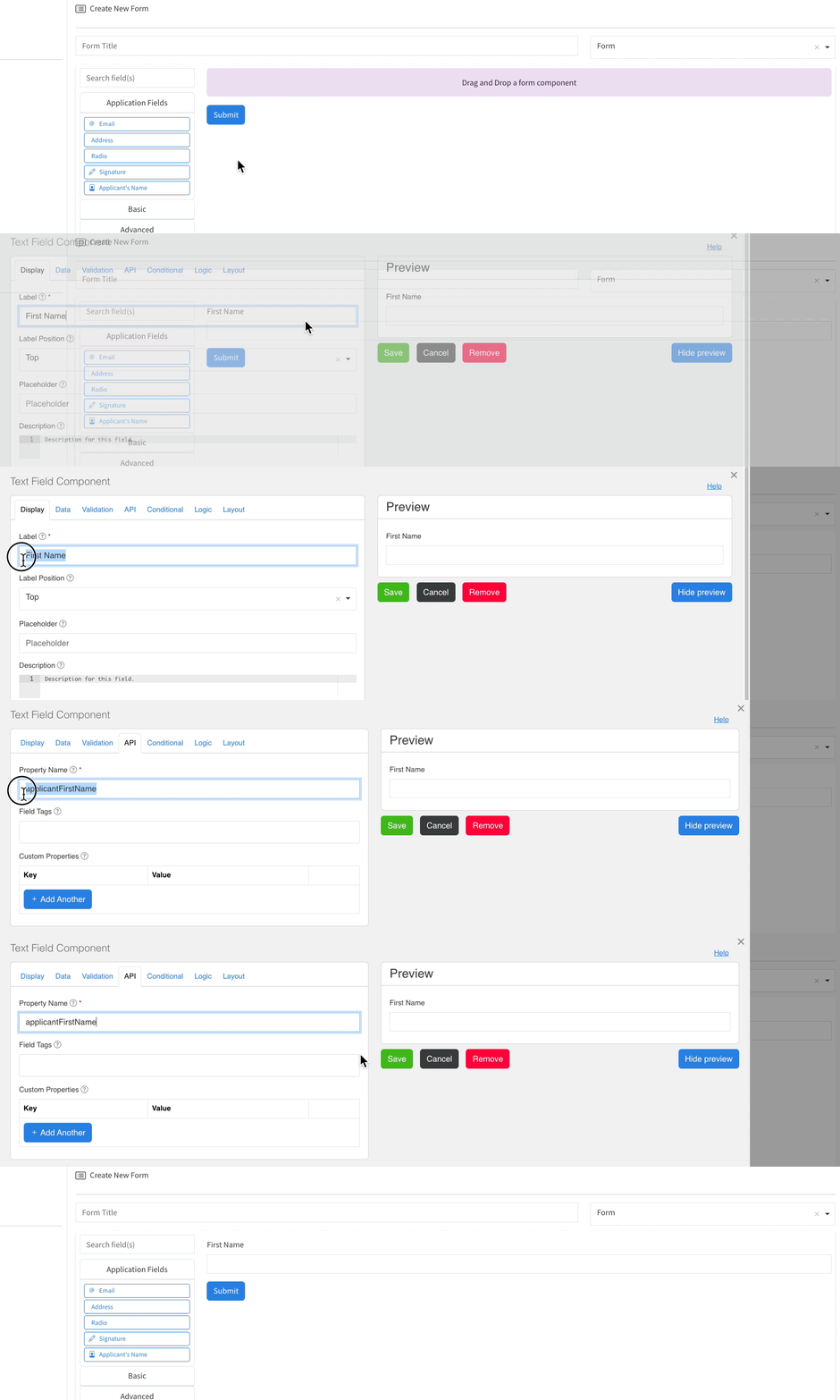
<figure><img src="https://3305536326-files.gitbook.io/~/files/v0/b/gitbook-x-prod.appspot.com/o/spaces%2F-MPHoF2HwOA0s5HV_AIB%2Fuploads%2Fvjpd6fw8a1ATCnjZxqCs%2Fcustomfield.gif?alt=media&#x26;token=d3019a1c-0679-4dab-b740-43fea23835fe" alt=""><figcaption></figcaption></figure>

Notice the Field Title within the group is called Applicant's Name, while the field Label is First Name when added to the builder.&#x20;
{% endtab %}

{% tab title="JSON Schema" %}
Use the JSON Schema to configure settings that will be set by default when the component is added to the form. These settings should be based on the component Type found within the Schema Fields tab. Utilize the Edit JSON button for a component found within the Form.io builder to easily copy and paste the desired property settings needed into the JSON schema code block.

1. Within a Form.io Project, **add** the base component to the Form Builder. In this example, we are using a Text Field for the **Applicant's Name** field

<figure><img src="https://3305536326-files.gitbook.io/~/files/v0/b/gitbook-x-prod.appspot.com/o/spaces%2F-MPHoF2HwOA0s5HV_AIB%2Fuploads%2FCRf5vP7ke41ssq59SPq4%2Ftextfieldfb.jpg?alt=media&#x26;token=8339f1cf-244e-4544-baba-a29217288c8c" alt=""><figcaption></figcaption></figure>

2. **Configure** any **settings** that should be set for the Pre-Defined component. In this example, a Placeholder and Required validation has been added to the field.&#x20;

<figure><img src="https://3305536326-files.gitbook.io/~/files/v0/b/gitbook-x-prod.appspot.com/o/spaces%2F-MPHoF2HwOA0s5HV_AIB%2Fuploads%2Fge20dp8oxQP0z910oNxV%2Ftextfieldsettings.jpg?alt=media&#x26;token=8bc419bd-181c-4c66-94e6-74ee71c147c7" alt=""><figcaption></figcaption></figure>

3. Click the **Edit** **JSON** button for the component found within the UI of the Form.io Form Builder and copy the JSON Schema.&#x20;

<figure><img src="https://3305536326-files.gitbook.io/~/files/v0/b/gitbook-x-prod.appspot.com/o/spaces%2F-MPHoF2HwOA0s5HV_AIB%2Fuploads%2F3owNmivQhws3iow7xq4m%2FtextfieldeditJSON.jpg?alt=media&#x26;token=b7f4aa34-7546-4ddd-b8af-c14c80ef7e56" alt=""><figcaption></figcaption></figure>

4. **Copy** the **JSON** **Schema** containing the component setting properties.&#x20;

<figure><img src="https://3305536326-files.gitbook.io/~/files/v0/b/gitbook-x-prod.appspot.com/o/spaces%2F-MPHoF2HwOA0s5HV_AIB%2Fuploads%2FxhDrwWuQEDArh0hp4daV%2Fjsonscehamcopy.jpg?alt=media&#x26;token=01f7b9c9-01df-4faa-b0b8-a600873e3add" alt=""><figcaption></figcaption></figure>

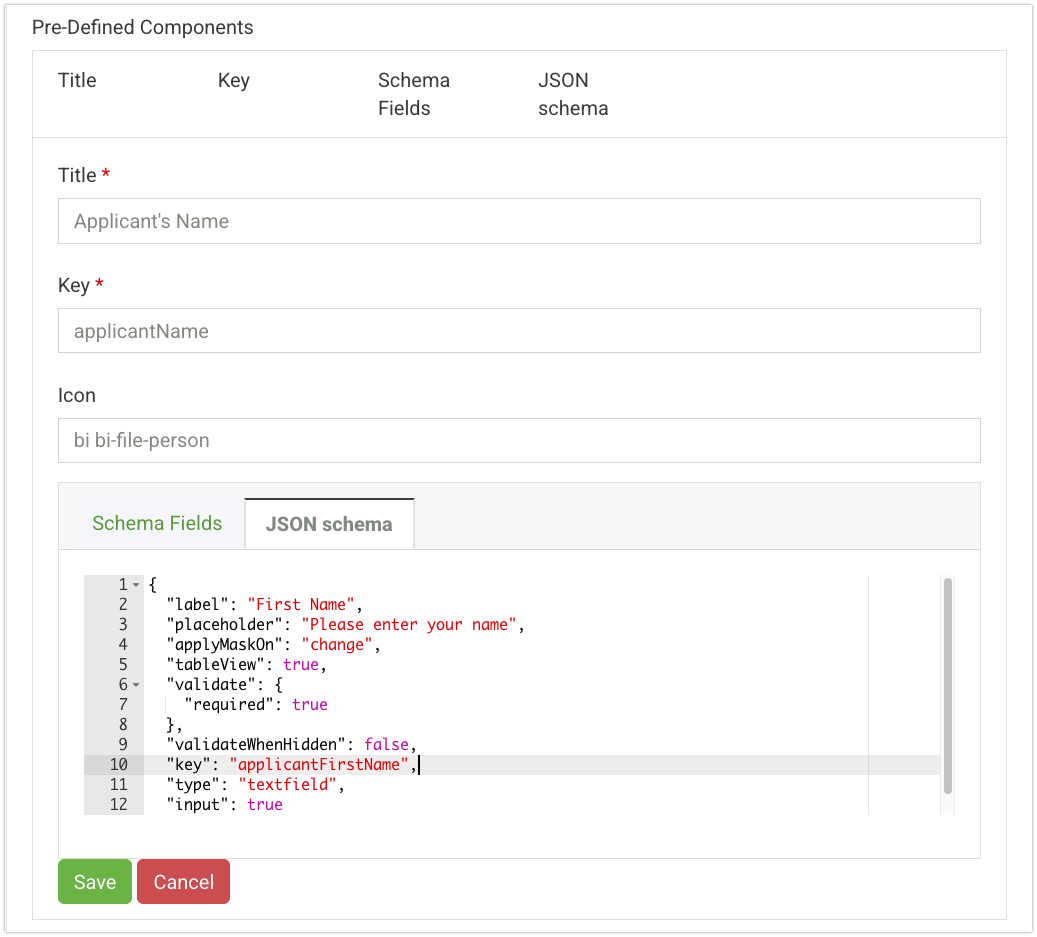
5. Within **Form** **Builder** **Pro**, paste the setting properties copied from step 4 and paste them into the JSON Schema code block of the Pre-Defined Field

<figure><img src="https://3305536326-files.gitbook.io/~/files/v0/b/gitbook-x-prod.appspot.com/o/spaces%2F-MPHoF2HwOA0s5HV_AIB%2Fuploads%2FDIHrVS7l2Nh5fFx2kuWC%2Faddjsonschema.jpg?alt=media&#x26;token=0e75985c-e060-4a6d-b92e-8a2136655e66" alt=""><figcaption></figcaption></figure>

[**Click here for a full list of Component JSON Schema**](https://github.com/formio/formio.js/wiki/Components-JSON-Schema#common-parameters)<br>

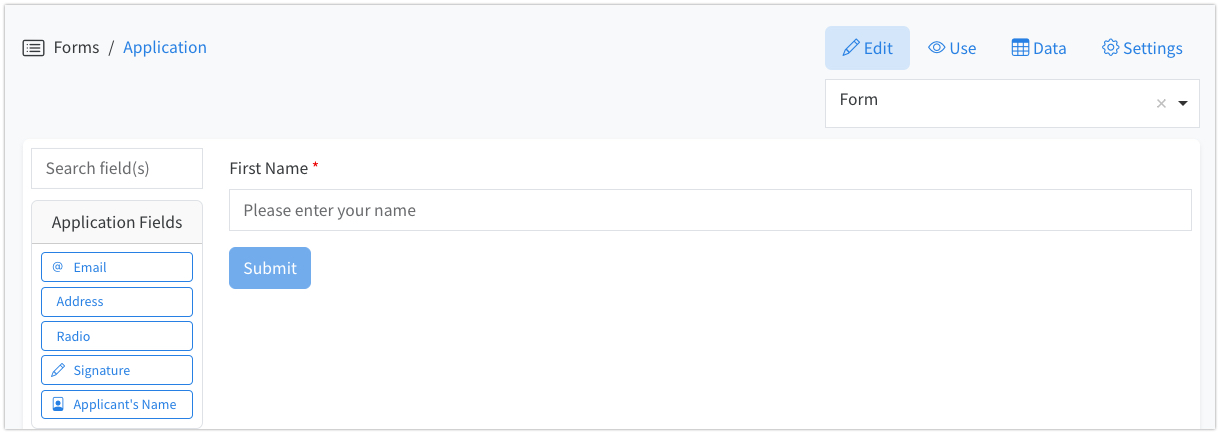
6. Click '**Save Builder Configuration**' to apply your settings. Update your application to reflect the changes in the Enterprise Form Builder.

<figure><img src="https://3305536326-files.gitbook.io/~/files/v0/b/gitbook-x-prod.appspot.com/o/spaces%2F-MPHoF2HwOA0s5HV_AIB%2Fuploads%2FzVNDOEZPqSJ3ItYkkmWk%2Fdemoappjsonschema.jpg?alt=media&#x26;token=1b9ea930-916d-4923-83a7-da2a4da18c4a" alt=""><figcaption></figcaption></figure>
{% endtab %}
{% endtabs %}

## Edit Form Options&#x20;

Customize standard components within the Enterprise Form Builder by adding or removing their default settings. Any Form Option changes made will effect available component settings when creating or updating [**Pre-Defined Fields**](#pre-defined-components).

### **Show Tabs**

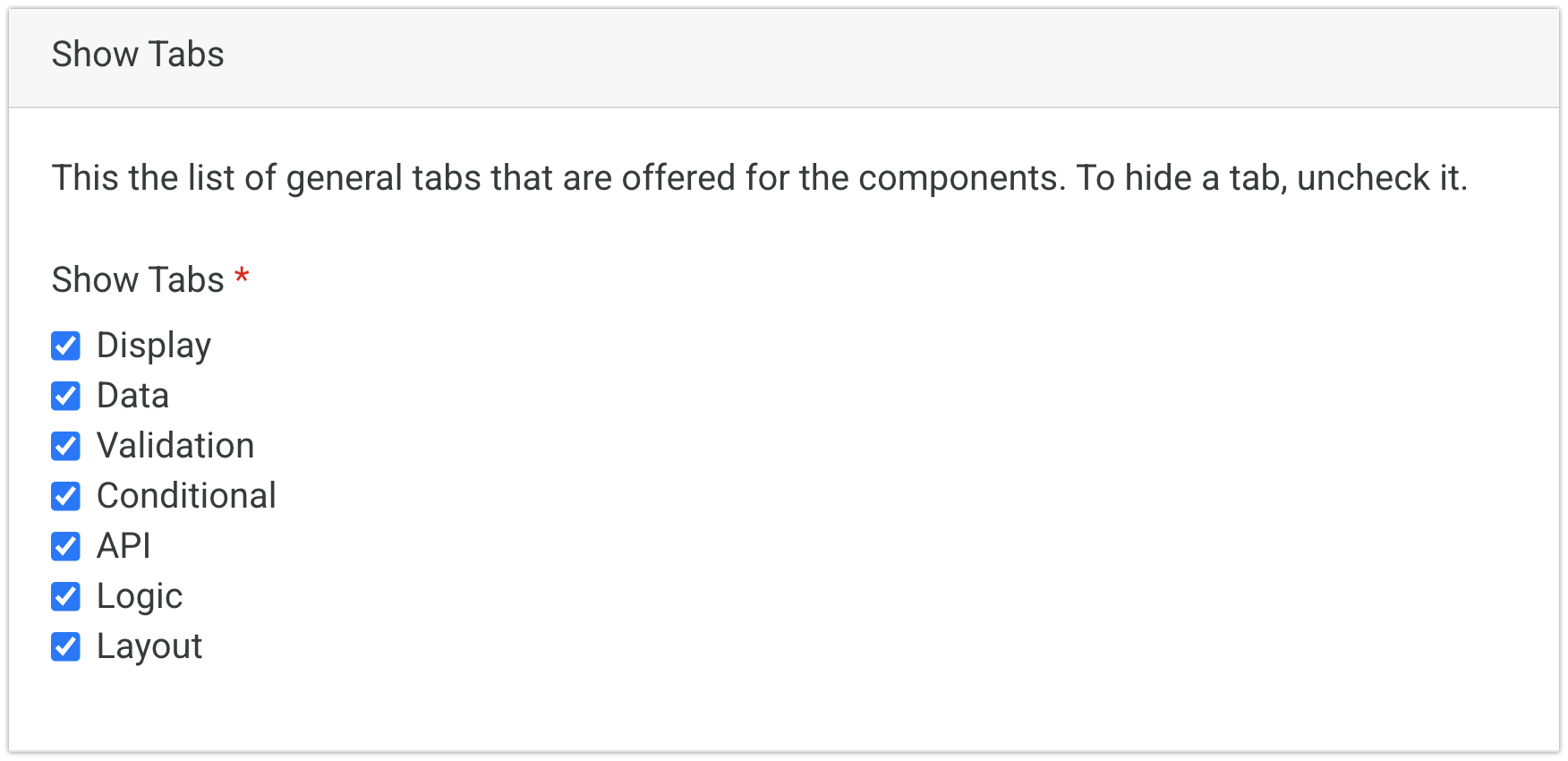
A list of *general* setting tabs that are included for all components. Unchecking a tab will remove the setting tab for all components within the Enterprise Form Builder, including any Pre-Defined Components within your Custom Groups.&#x20;

<figure><img src="https://3305536326-files.gitbook.io/~/files/v0/b/gitbook-x-prod.appspot.com/o/spaces%2F-MPHoF2HwOA0s5HV_AIB%2Fuploads%2FU6lf30VaahLVS9bUXSOA%2Fshowtabs.jpg?alt=media&#x26;token=c68226b7-0198-4a34-b402-6ab194e4be91" alt=""><figcaption></figcaption></figure>

**Toggling Setting Tabs**

1. Click the **Edit Form Options** tab
2. Navigate to the **Show Tabs** panel
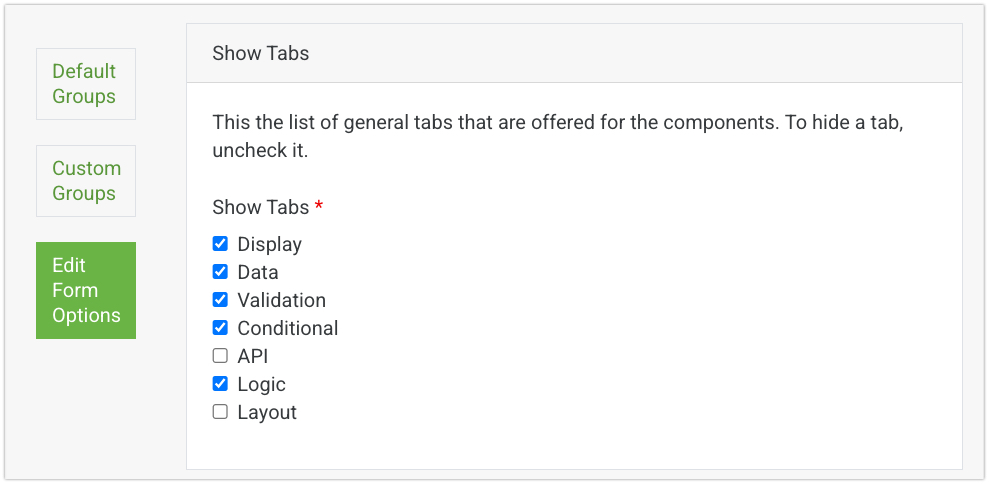
3. **Toggle** the desired **Setting** group to remove the tab and all settings found within the tab from components within the Enterprise Form Builder

<figure><img src="https://3305536326-files.gitbook.io/~/files/v0/b/gitbook-x-prod.appspot.com/o/spaces%2F-MPHoF2HwOA0s5HV_AIB%2Fuploads%2FQb3iwsQ4piKueGmzVTGO%2Fefb-showtabs.jpg?alt=media&#x26;token=abd2bdfa-9d0d-49d0-98a3-ea61ad9a97d8" alt=""><figcaption></figcaption></figure>

4. Click '**Save Builder Configuration**' to apply your settings. Update your application to reflect the changes in the Enterprise Form Builder.

<figure><img src="https://3305536326-files.gitbook.io/~/files/v0/b/gitbook-x-prod.appspot.com/o/spaces%2F-MPHoF2HwOA0s5HV_AIB%2Fuploads%2Fuld80BoHgDAoka9HW3PF%2Fsettingtabsremoved.jpg?alt=media&#x26;token=7333c480-6511-4dab-b4d0-8b4ed11fe093" alt=""><figcaption><p>API and Layout setting tabs removed</p></figcaption></figure>

### **Show Fields**

A complete list of default components included in the Enterprise Form Builder. Opening the component panel will display all available settings specific to the component. Uncheck a setting to remove it from the Enterprise Form Builder. If a general setting tab has been disabled , a message will display saying this setting tab has been disabled.&#x20;

{% hint style="info" %}
Any field settings you remove will also affect Pre-Defined fields that use this component as their Type
{% endhint %}

<figure><img src="https://3305536326-files.gitbook.io/~/files/v0/b/gitbook-x-prod.appspot.com/o/spaces%2F-MPHoF2HwOA0s5HV_AIB%2Fuploads%2FD0DRZqB1n371oQLM3KHT%2Fsettingtabs.jpg?alt=media&#x26;token=d45c9e8e-5578-40cb-951f-1632a2aef9cc" alt=""><figcaption></figcaption></figure>

**Toggling Individual Settings**

1. Click the **Edit Form Options** tab
2. Navigate to the **Show Fields** panel
3. **Expand** the Component panel you wish to modify settings for.
4. **Toggle** the desired **Setting** to remove that setting from the component options.

<figure><img src="https://3305536326-files.gitbook.io/~/files/v0/b/gitbook-x-prod.appspot.com/o/spaces%2F-MPHoF2HwOA0s5HV_AIB%2Fuploads%2FFR9CepPw7NOAK931cymI%2Ftextfieldupdate.jpg?alt=media&#x26;token=d0ef04c1-3a3b-4440-9430-a7a75a5a7327" alt=""><figcaption></figcaption></figure>

5. Click '**Save Builder Configuration**' to apply your settings. Update your application to reflect the changes in the Enterprise Form Builder.

<figure><img src="https://3305536326-files.gitbook.io/~/files/v0/b/gitbook-x-prod.appspot.com/o/spaces%2F-MPHoF2HwOA0s5HV_AIB%2Fuploads%2FZQwTxSY2BfBIqjeCHe70%2Ftextfieldbuilder.jpg?alt=media&#x26;token=5074d7c1-f618-45b0-b154-1b6d855a57b4" alt=""><figcaption></figcaption></figure>


---

# Agent Instructions: Querying This Documentation

If you need additional information that is not directly available in this page, you can query the documentation dynamically by asking a question.

Perform an HTTP GET request on the current page URL with the `ask` query parameter:

```
GET https://help.form.io/userguide/enterprise-form-builder-module/using-enterprise-form-builder.md?ask=<question>
```

The question should be specific, self-contained, and written in natural language.
The response will contain a direct answer to the question and relevant excerpts and sources from the documentation.

Use this mechanism when the answer is not explicitly present in the current page, you need clarification or additional context, or you want to retrieve related documentation sections.